
Trust Wallet is a self-custodial wallet that creates addresses for dozens of networks from one recovery phrase. That makes it a practical single wallet for receiving PayGate.to payouts in Bitcoin, Litecoin, Dogecoin, Bitcoin Cash, Zcash (transparent), TRON and USDT TRC20, Solana, XRP, TON and every EVM network.
This guide uses the Trust Wallet browser extension (version 26.45, November 2026). The mobile app has the same steps.
Step 1: Install Trust Wallet from the official source
Type trustwallet.com into your browser yourself and use its download links for the extension or the mobile app. Check the publisher name before installing. Never install a wallet from an ad or a link someone sent you.
Step 2: Accept the terms and choose your data settings
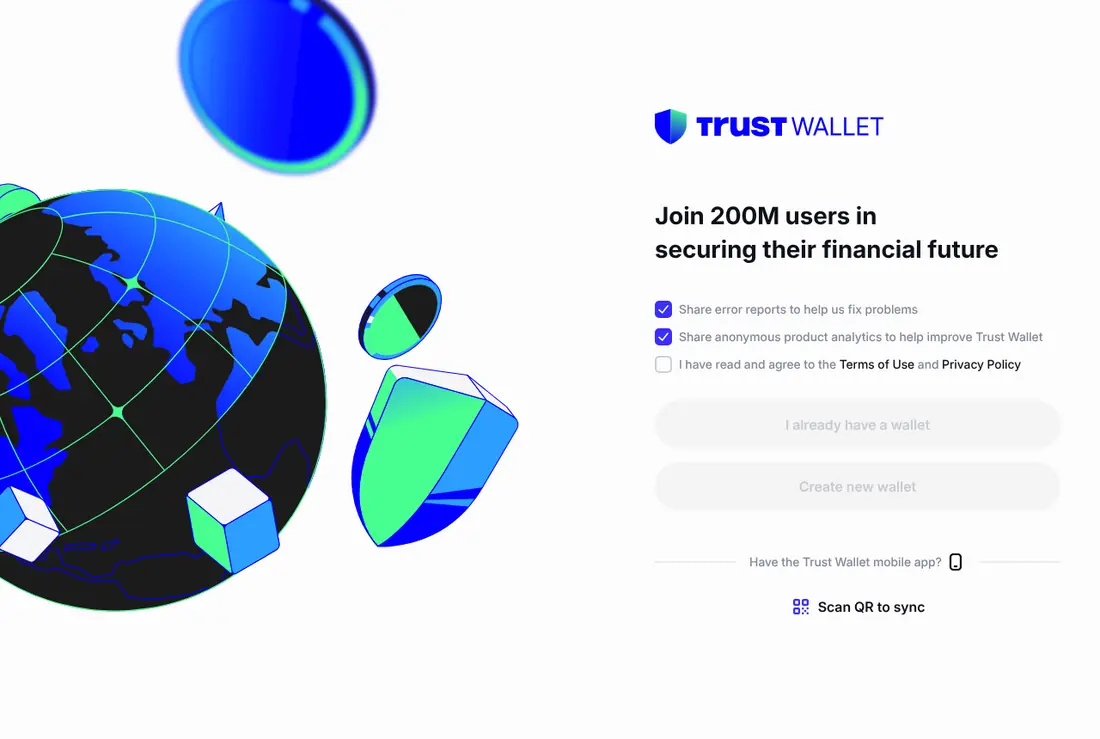
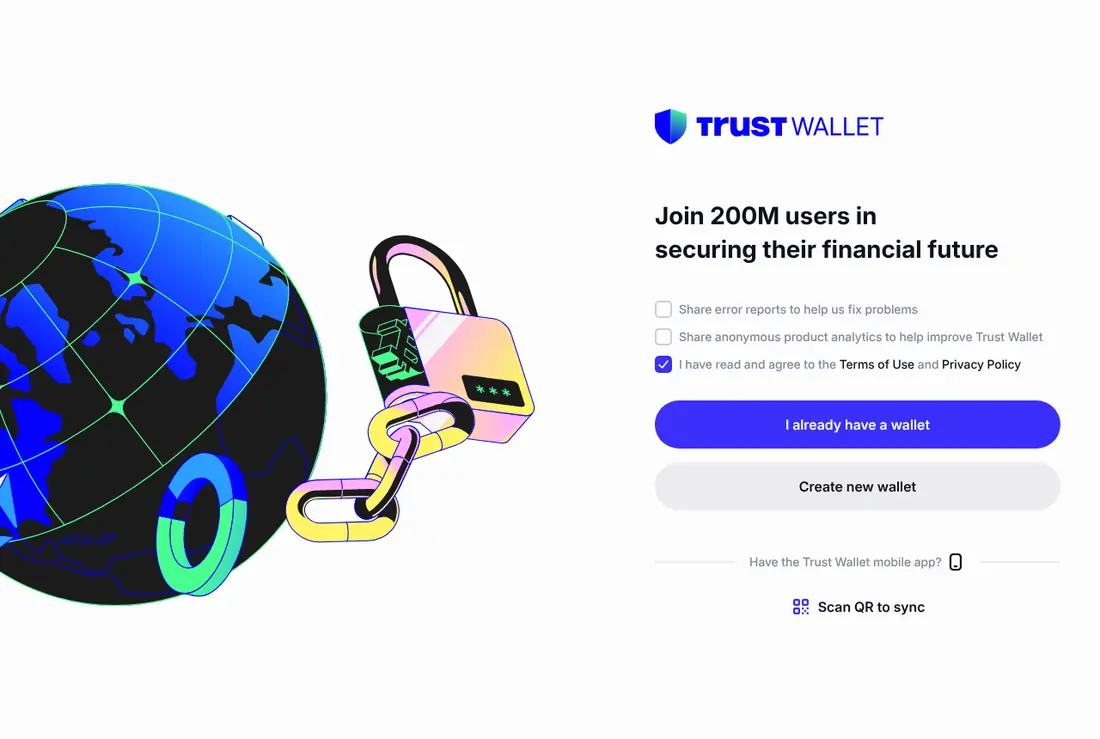
The first screen has two data-sharing options (error reports and anonymous analytics) and the terms checkbox. The data options are optional; we unticked both. Tick the terms box, then click Create new wallet.
Step 3: Protect the wallet with a password
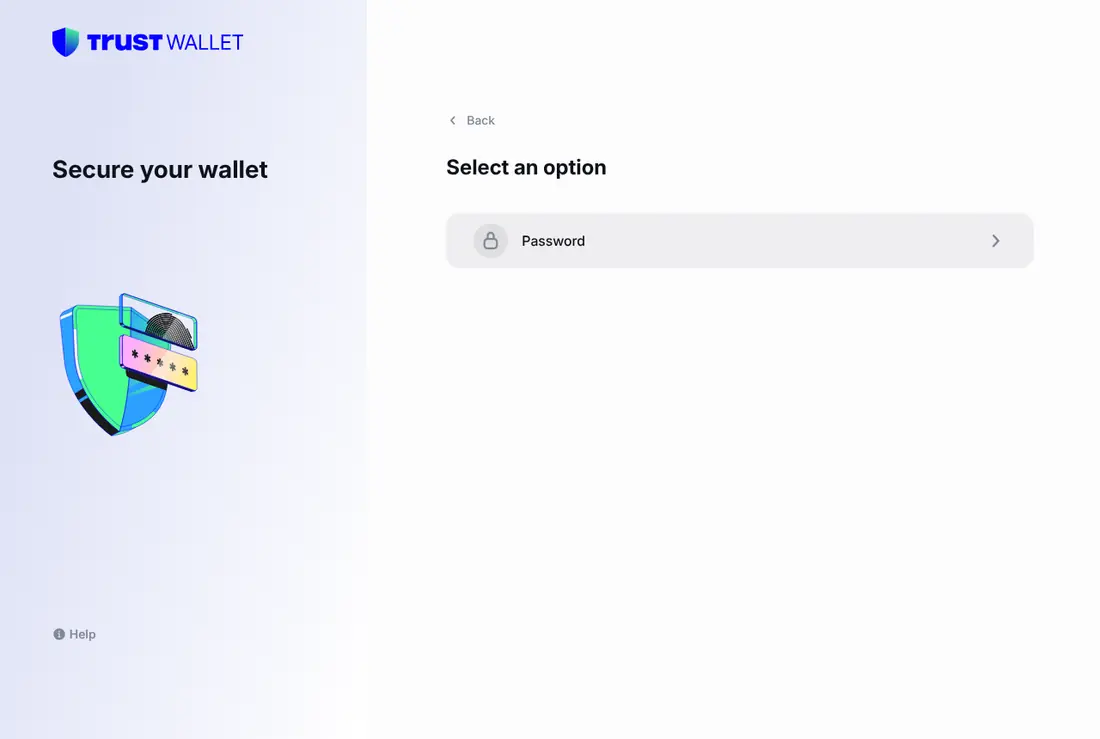
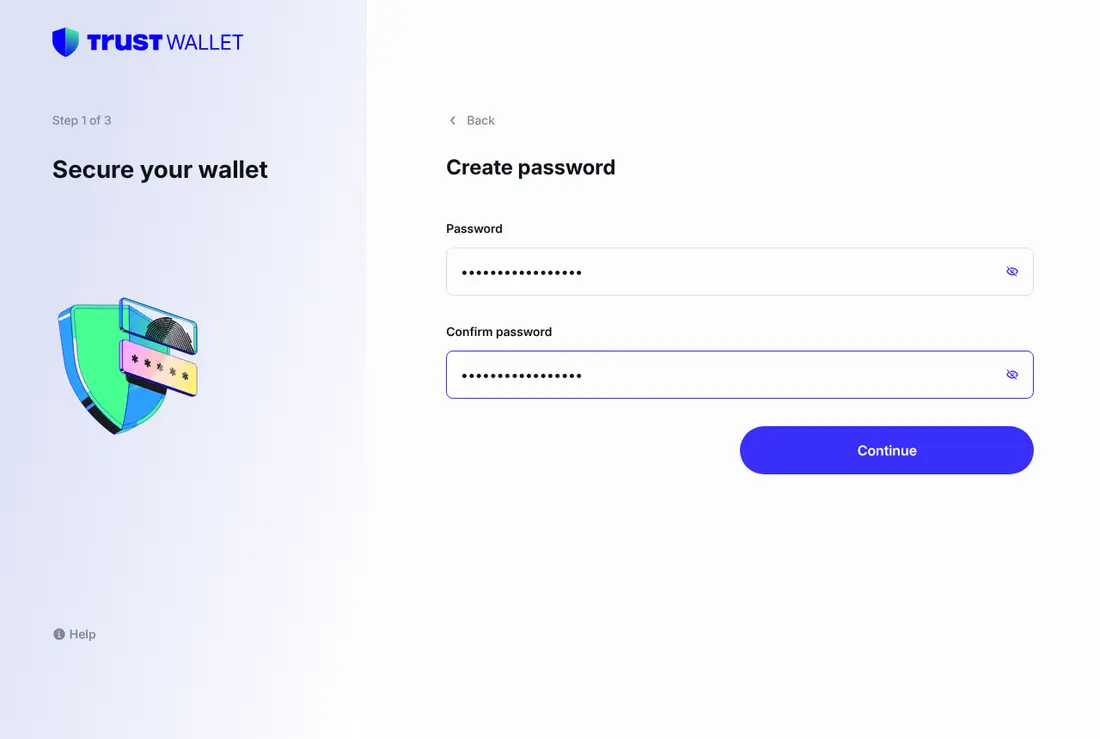
Choose Password and set a strong one. Like in other wallets, it only unlocks the app on this device; the recovery phrase is what restores the wallet anywhere.
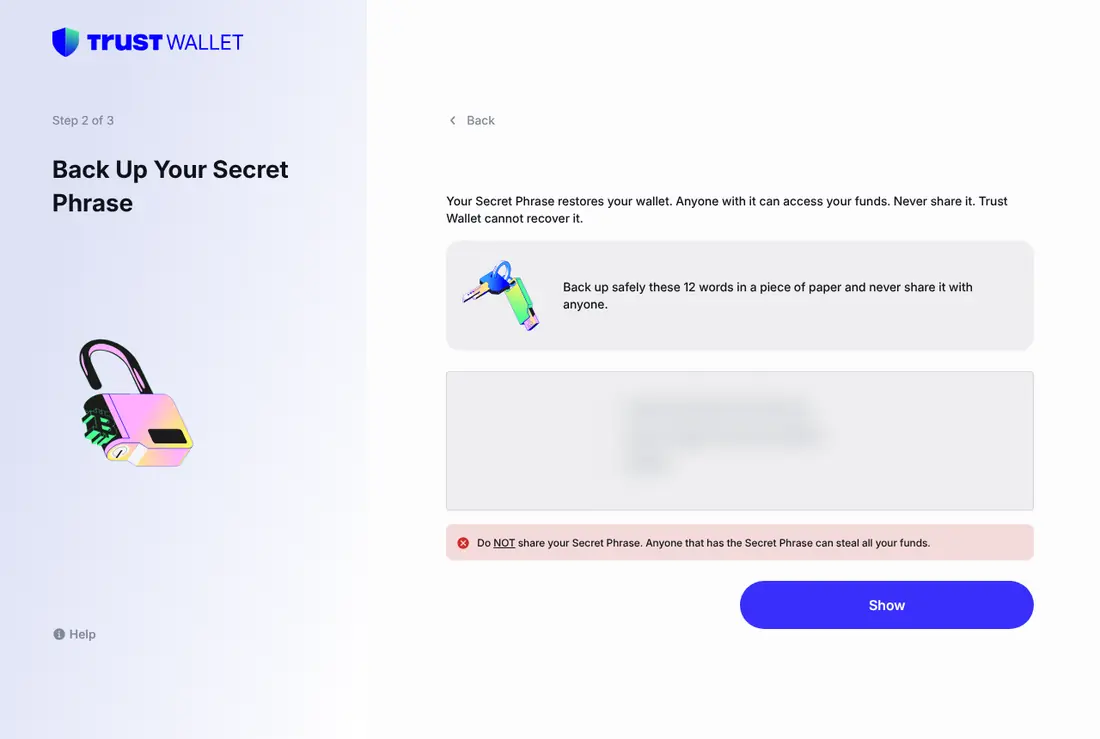
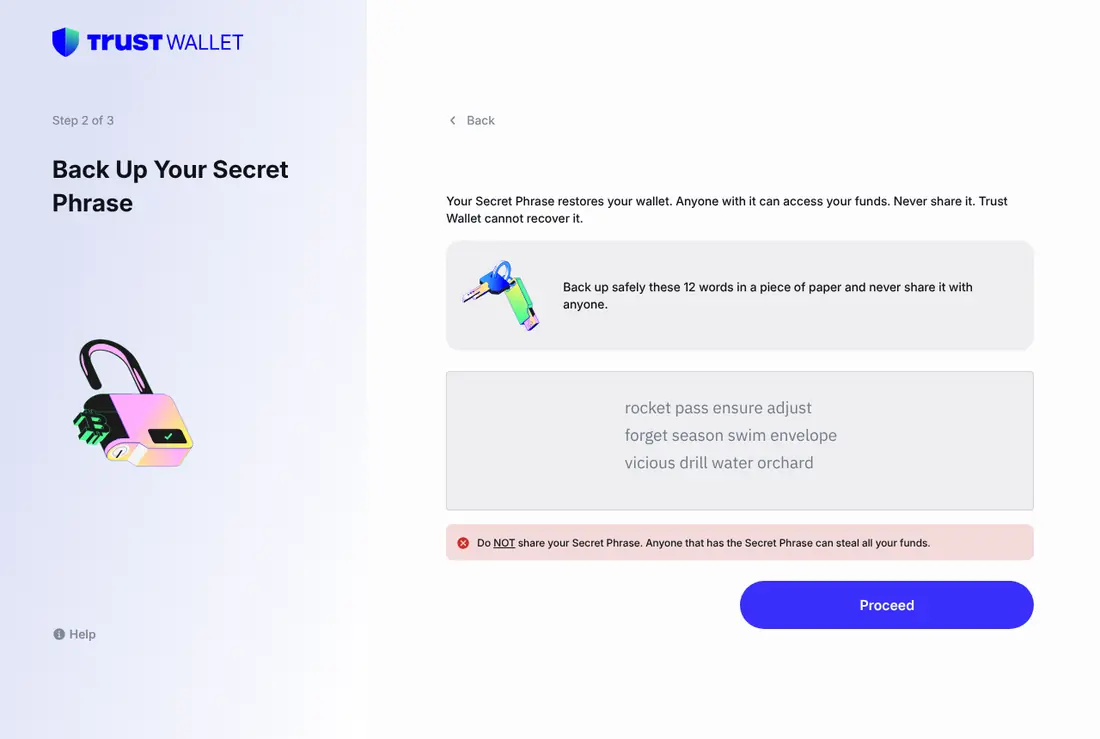
Step 4: Back up the Secret Phrase on paper
Trust Wallet shows a warning screen, then asks for your password again before showing the 12 words. Write them down in order, on paper.
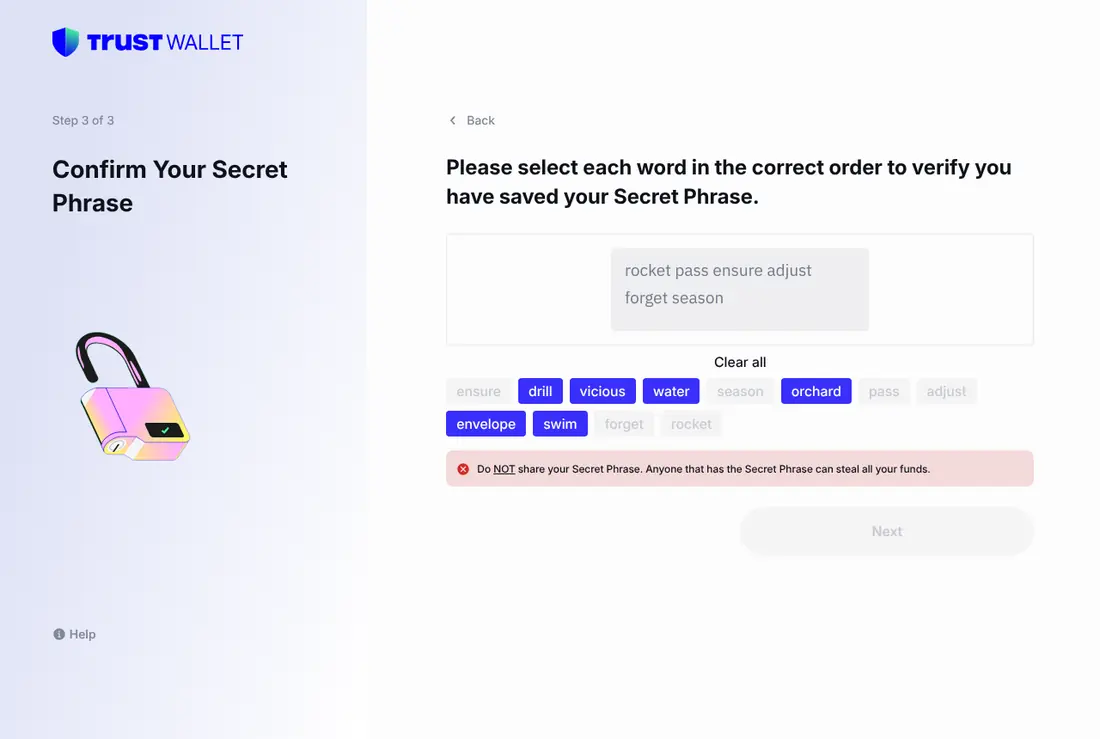
Step 5: Confirm the phrase
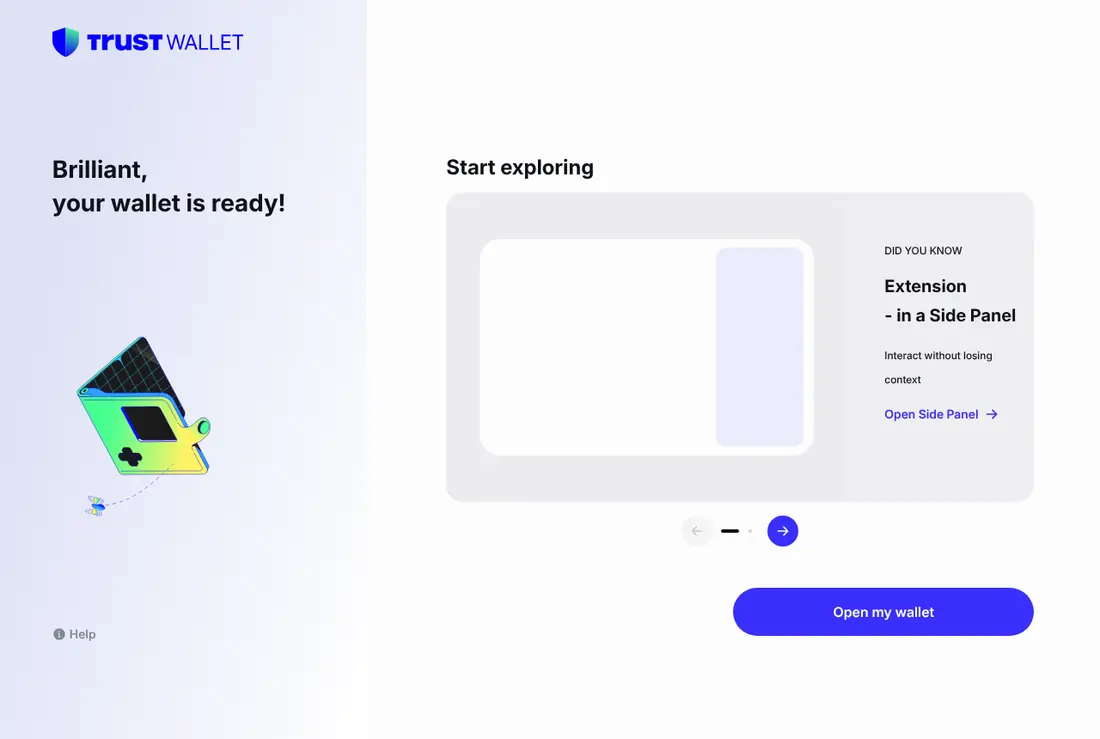
Click the words in the right order to prove your paper copy is correct, then click Next.
Step 6: Open Receive and pick the network
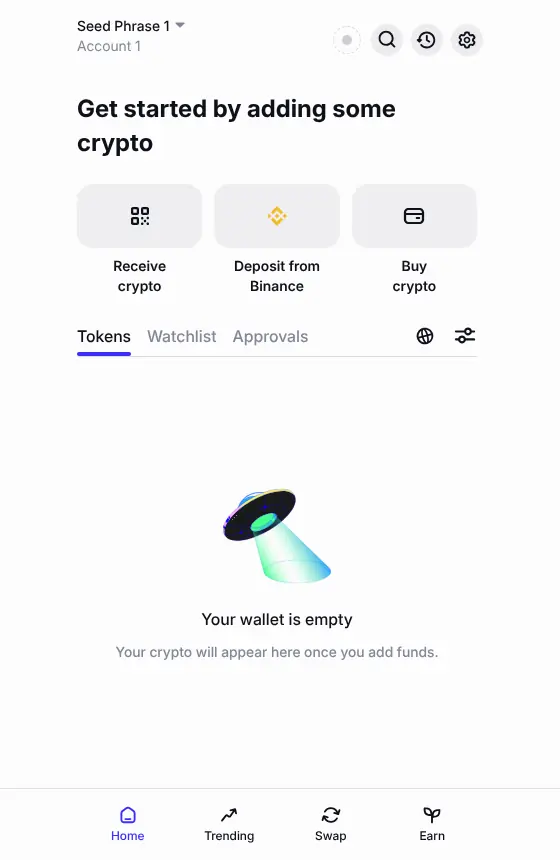
On the home screen, click Receive crypto.
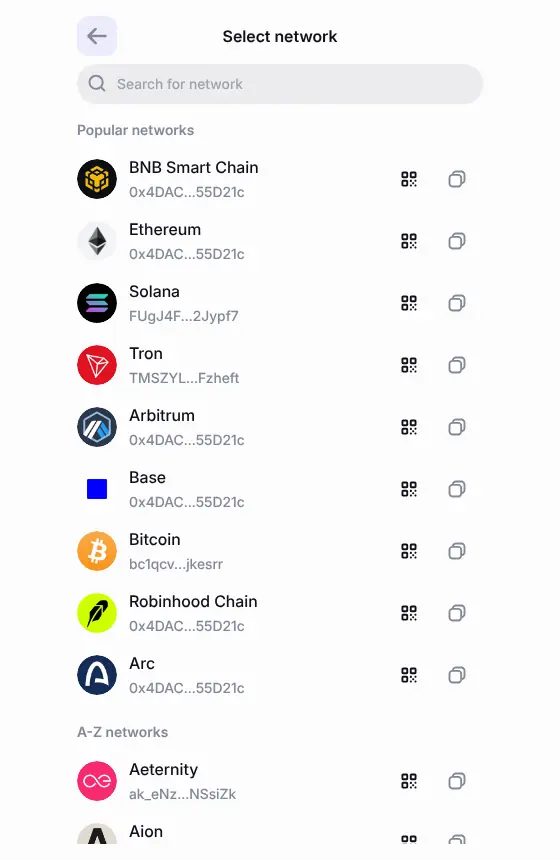
You get a list of networks, each with its own address. EVM networks (Ethereum, BNB Smart Chain, Arbitrum, Base, Polygon…) share one 0x address; Bitcoin, Solana, TRON, XRP and others have their own.
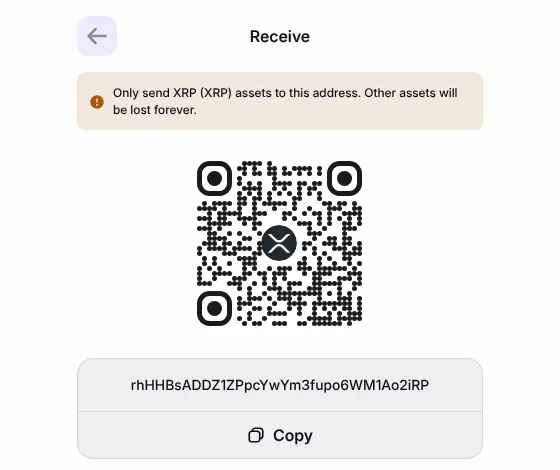
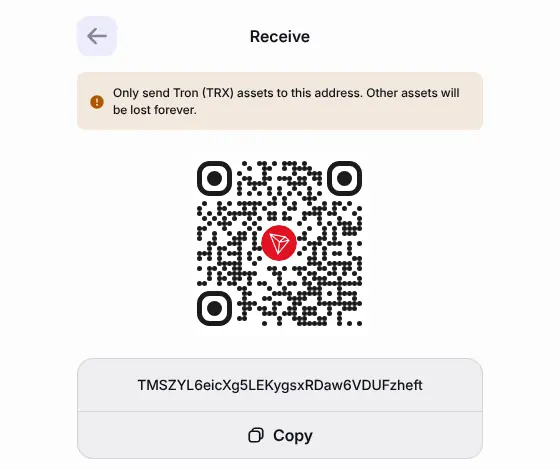
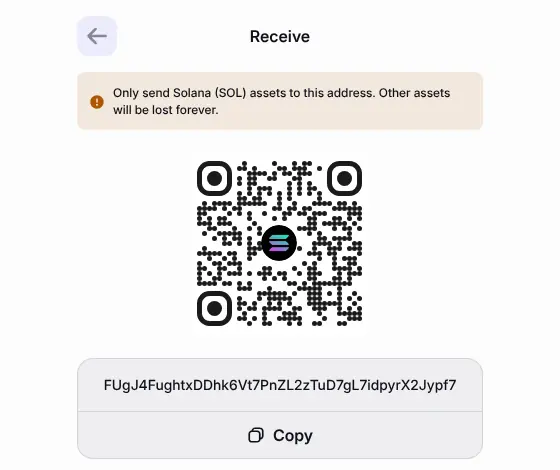
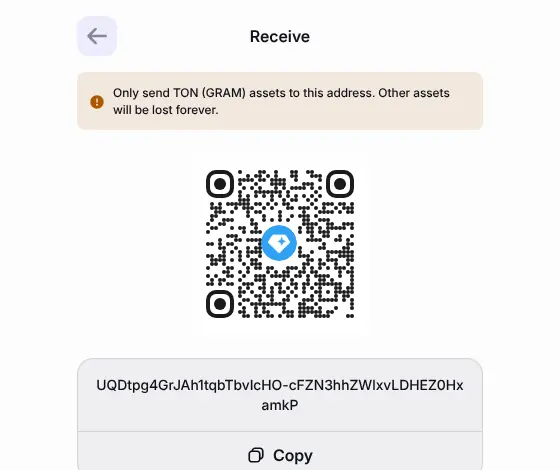
Type the network in Search for network, then click its QR icon to open the full address with a Copy button. The warning at the top tells you exactly which assets the address accepts.
Which Trust Wallet address goes into which PayGate.to field?
| PayGate.to field | Trust Wallet network to open | Address looks like |
|---|---|---|
| EVM wallet | Ethereum (same for all EVM networks) | 0x… |
| Bitcoin (BTC) | Bitcoin | bc1q… |
| Bitcoin Cash (BCH) | Bitcoin Cash | bitcoincash:q… or q… |
| Litecoin (LTC) | Litecoin | ltc1q… |
| Dogecoin (DOGE) | Dogecoin | D… |
| Solana (SOL) | Solana | 32 to 44 letters and numbers |
| TRC20 (USDT on TRON) | Tron | T… |
| TON | TON | UQ… or EQ… |
| Zcash (ZEC) | Zcash | t1… (transparent) |
| XRP | XRP | r… |
| Monero (XMR) | Not available in Trust Wallet | Use Feather or Cake Wallet |
XRP addresses need 1 XRP to activate
A brand-new XRP address doesn't exist on the XRP Ledger until it has received at least the base reserve (1 XRP at the time of writing). PayGate.to's XRP minimum is higher than that, so your first payout activates the address. Details are in Get an XRP address with a destination tag.
Use it with PayGate.to
Frequently asked questions
Is Trust Wallet self-custodial?
Yes. The recovery phrase is created on your device and only you have it.
Why are there so many networks in the list?
Trust Wallet derives an address for every network it supports from the same recovery phrase. You only need the ones you'll actually receive on.
Can I receive USDT TRC20 to my TRON address?
Yes. USDT on TRON uses your normal T… address. To move USDT later you'll need some TRX to pay network fees; see Get a USDT TRC20 address you control.
Does Trust Wallet support Monero?
Not at the time of writing. Use Feather Wallet on a computer or Cake Wallet on a phone.
Is the Zcash address shielded?
Trust Wallet shows a transparent t1… address. It works for PayGate.to payouts. Transparent Zcash transactions are public, like Bitcoin's; for privacy you can later move funds to a shielded address in a wallet that supports them.