
Hosting companies and SaaS businesses use WHMCS to bill clients. The free PayGate.to module adds two crypto gateways to WHMCS: clients pay invoices in the coin of their choice and every payment is forwarded to your own wallet. Fees: 1% plus blockchain fees. Illustrated install guide: WHMCS crypto module page.
Requirements
- WHMCS with admin access, and FTP/SFTP or your hosting file manager.
- PHP with the
curlandopensslextensions, and outbound HTTPS (the coin list loads live). - System URL set to your public https address.
- A self-custodial wallet for each coin or network.
Step 1: Upload the module
Download the module ZIP from the WHMCS crypto module page, unzip it, and upload the modules folder into your WHMCS root (the folder with configuration.php), merging it with the existing modules folder:
<whmcs root>/modules/gateways/
├── paygatecrypto.php            (Individual Coins)
├── paygatecryptomulti.php       (Multicoin)
├── paygatecrypto/               (lib.php, keys, logo)
├── paygatecryptomulti/          (logo)
└── callback/
    ├── paygatecrypto.php
└── paygatecryptomulti.phpStep 2: Activate the gateways
Configuration › System Settings › Payment Gateways › All Payment Gateways (WHMCS 7: Setup › Payments › Payment Gateways), then activate Crypto Payment Gateway — Individual Coins and/or Crypto Payment Gateway — Multicoin.
| Gateway | How clients pay |
|---|---|
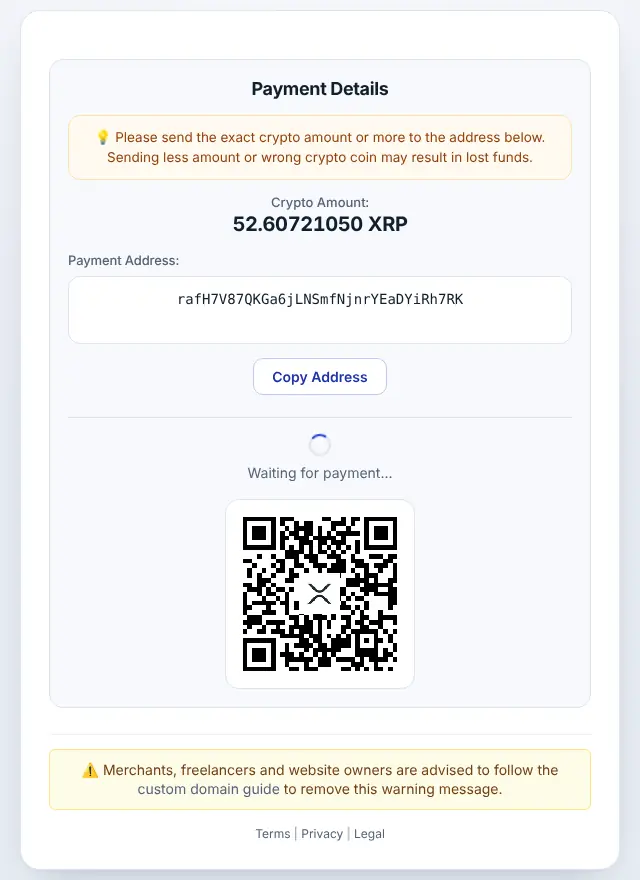
| Individual Coins | They pick a coin and see the QR code, amount and address on the invoice |
| Multicoin | They click Pay with cryptocurrency and choose a coin on the hosted page |
Step 3: Enter wallets
- Individual Coins: one field per coin, loaded live. Fill the coins you want; leave others blank.
- Multicoin: one field per network:
| Field | Accepts |
|---|---|
| EVM Wallet Address | ETH and tokens on Ethereum, BNB Smart Chain, Polygon, Optimism, Arbitrum, Base, Avalanche |
| Bitcoin, Bitcoin Cash, Litecoin, Dogecoin | One field each |
| Solana (SOL) | SOL and Solana tokens |
| TRC20 | TRX and USDT on TRON |
| Monero (XMR), Zcash (ZEC), TON | One field each |
| XRP Wallet Address (XRP Ledger) | r…, r…?dt=TAG or an X-address |
Optional: custom checkout domain, logo and colours for the hosted page.
Step 4: Test with an invoice
Create a small invoice and pay it with a low-minimum coin. When the payment is confirmed, the crypto is forwarded to your wallet and the invoice is marked paid.
Good to know
- The module stores payment data in the invoice Notes: don't edit them while a crypto payment is pending.
- In Individual Coins mode, a payment in the wrong token is still forwarded to you, but the invoice isn't marked paid automatically: check it and mark it paid by hand.
- If you used older per-coin PayGate.to modules, deactivate them.
Troubleshooting
- "Coin list" error in the settings: allow outbound HTTPS to
api.paygate.to. - "No cryptocurrencies are currently available": fill at least one wallet.
- Invoice stays Unpaid: check the System URL and that
/modules/gateways/callback/is reachable; look for "Underpaid" in the Gateway Log. More in WHMCS troubleshooting.
Coin guides for WHMCS
Monero · XRP · Bitcoin · USDT · USDC
Frequently asked questions
Can I offer both gateways?
Yes. Clients see both as payment methods on the invoice.
Does it work with recurring invoices?
Each invoice is paid individually: clients pay each new invoice in crypto as it's generated.
Where's the module's log?
In WHMCS under the Gateway Log, which records each callback.