
Your MetaMask address is the same on every EVM network, but MetaMask only shows balances for the networks it has enabled. If a payout arrived on a network MetaMask isn't showing, the funds are safe; you just can't see them yet. This guide shows which networks are already there, how to add more, and how to check custom network details safely.
Screenshots are from the MetaMask extension, version 13.56 (November 2026).
Which networks are already in MetaMask?
Click the All networks filter above your token list. The networks under the first heading are enabled. In our version these were Ethereum, Linea, Base, Arbitrum, BNB Chain, OP (Optimism), Polygon and Monad, plus the non-EVM Bitcoin, Solana and TRON accounts.
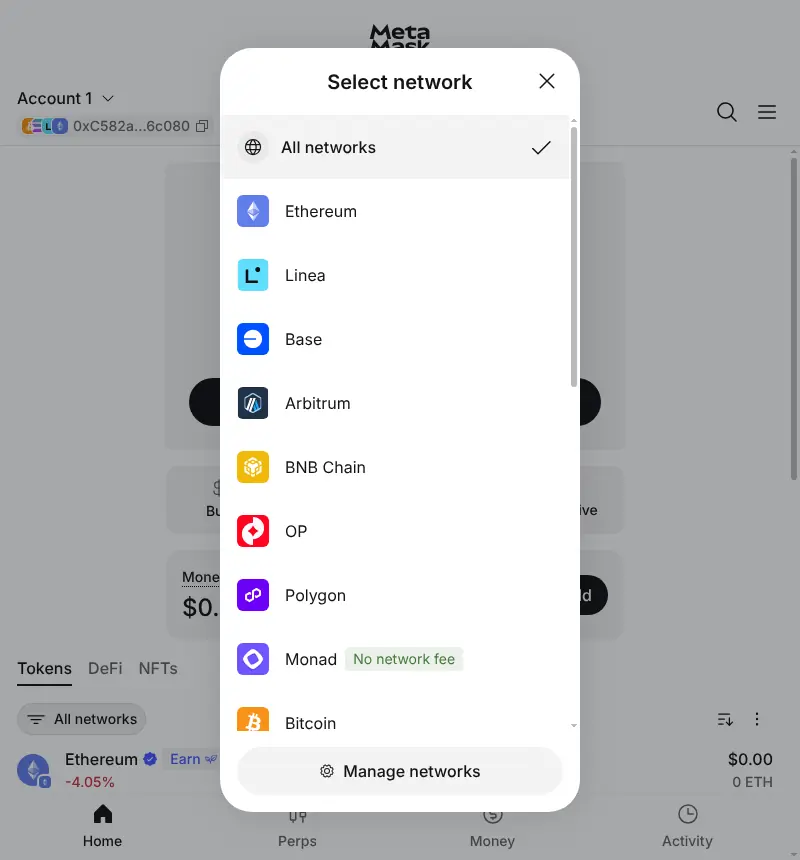
That covers most PayGate.to EVM payouts, including USDC on Polygon from the card payment gateway.
Step 1: Add a listed network (example: Avalanche)
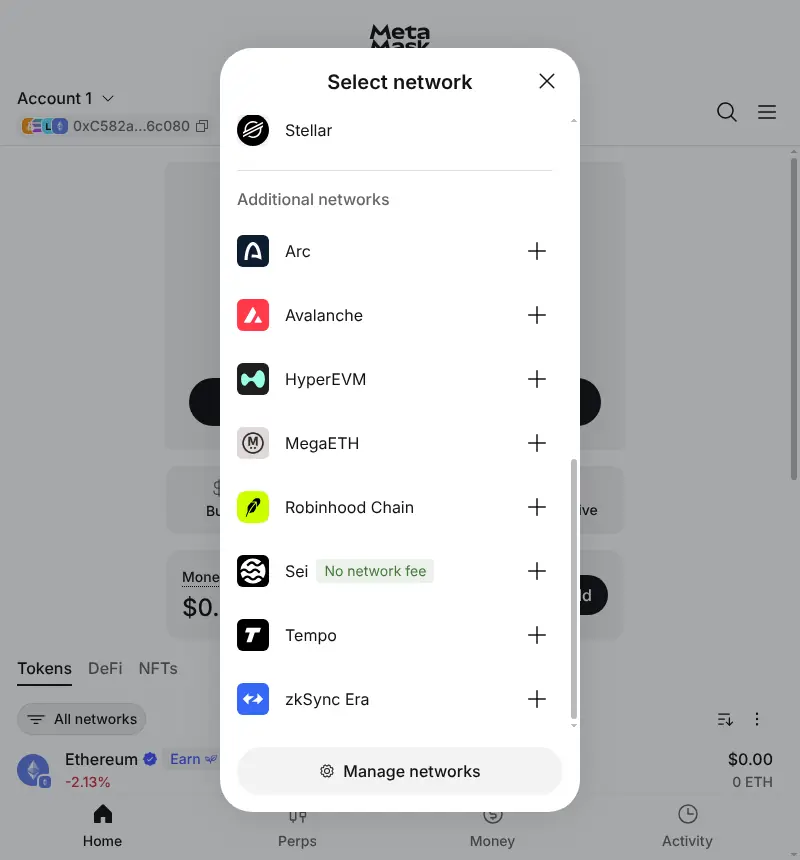
Scroll down the same list to Additional networks. These are networks MetaMask knows but hasn't switched on. Click + next to Avalanche.
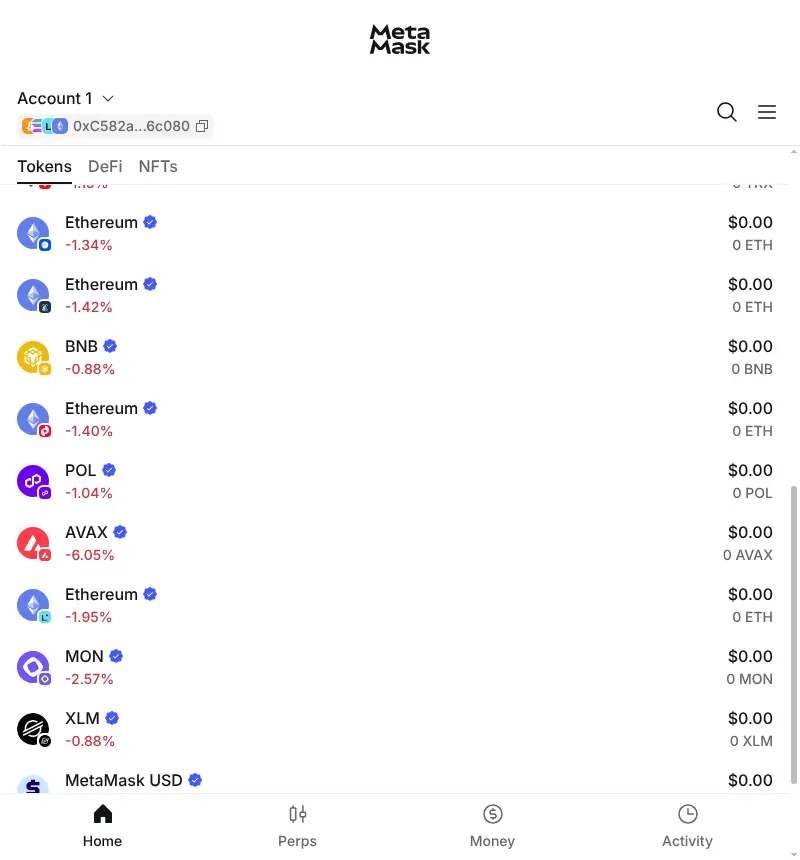
Avalanche now appears in your token list with an AVAX balance. Nothing else changes: your address is the same.
Step 2: Add a custom network (example: Berachain)
Some networks aren't listed at all. Open All networks, then Manage networks, then Add a custom network at the bottom.
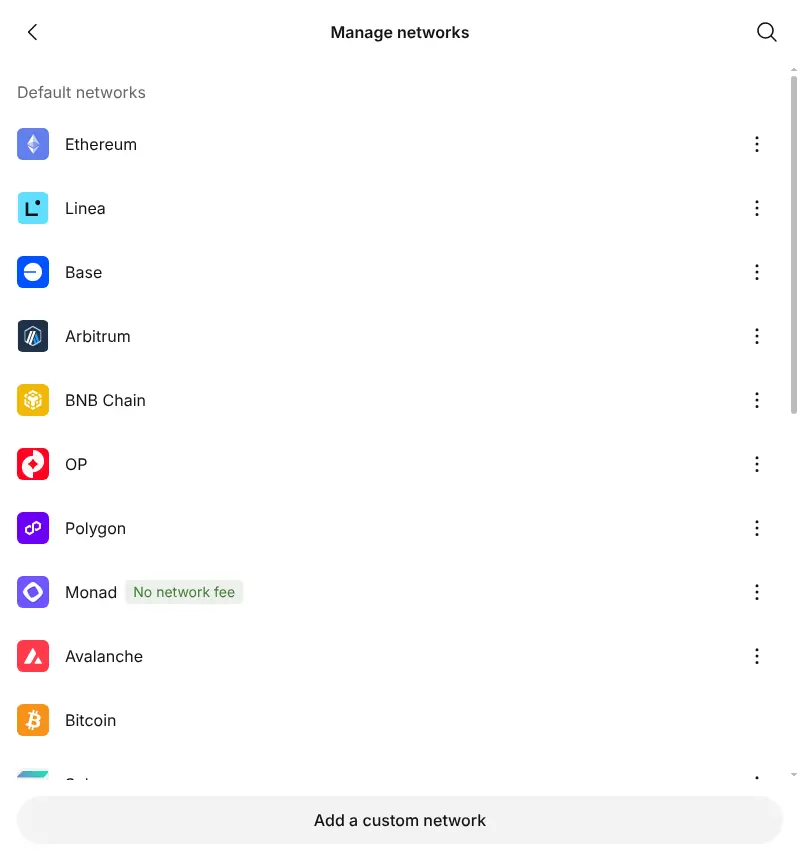
Type the network name. MetaMask suggests known networks with their chain ID and currency symbol. For Berachain mainnet, pick the suggestion with chain ID 80094 and symbol BERA. MetaMask fills in the RPC URL (rpc.berachain.com).
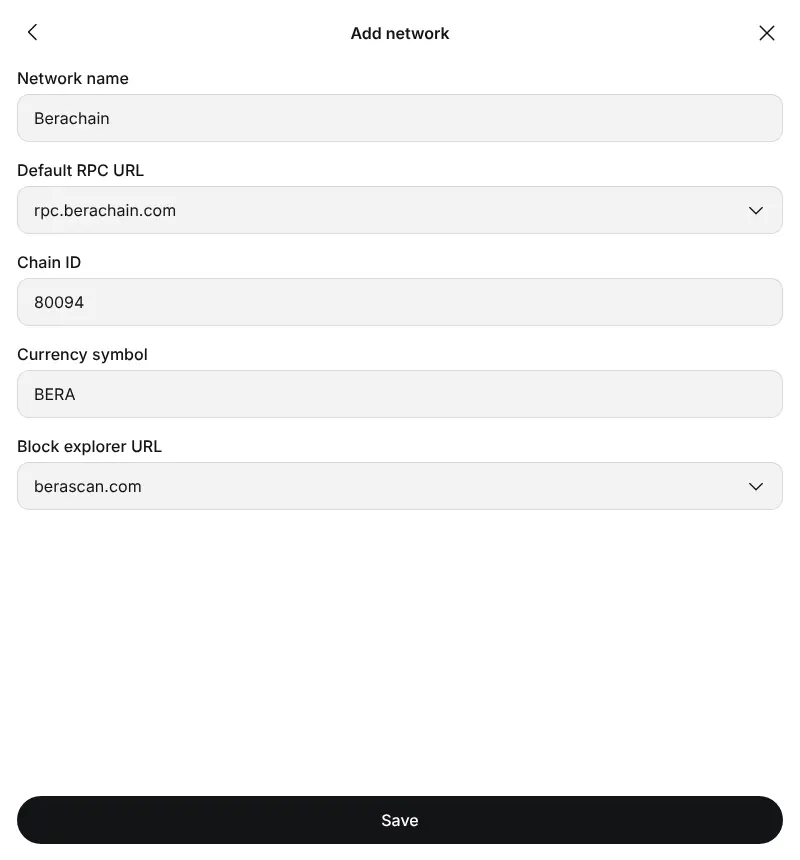
Check the details against the network's own official documentation, then click Save.
Network details for PayGate.to EVM payouts
| Network | Chain ID | Fee coin | In MetaMask (13.56) |
|---|---|---|---|
| Ethereum | 1 | ETH | Built in |
| Polygon | 137 | POL | Built in |
| BNB Smart Chain | 56 | BNB | Built in |
| Arbitrum One | 42161 | ETH | Built in |
| Base | 8453 | ETH | Built in |
| Optimism (OP) | 10 | ETH | Built in |
| Linea | 59144 | ETH | Built in |
| Monad | 143 | MON | Built in |
| Avalanche C-Chain | 43114 | AVAX | Additional network, one click |
| Berachain | 80094 | BERA | Custom network |
Tokens: when a coin still doesn't show
Adding the network shows the network's own coin. Most common tokens (USDC, USDT) are detected automatically. If one isn't:
- Switch to the right network.
- Open the token options and choose Import tokens.
- Paste the token's official contract address for that network, from the token issuer's own website.
Never import a token because someone sent you its contract: scam tokens with familiar names are common.
Frequently asked questions
Do I need to add a network before someone sends me funds on it?
No. Your address already exists on every EVM network. Adding the network only lets MetaMask show and use those funds.
Is it safe to add networks?
Yes, if the details come from MetaMask's list or the network's official documentation. A network entry can't move your funds; the risk is a fake RPC showing you false information.
What is a chain ID?
A number that uniquely identifies an EVM network, so a transaction signed for one network can't be replayed on another. Always compare it when adding a network: names can be copied, chain IDs can't be shared by two real networks.
Why does MetaMask show Bitcoin, Solana and TRON?
Recent MetaMask versions create accounts for those networks from the same recovery phrase. They have their own address formats, separate from your 0x address. See Crypto addresses explained.