
Easy Digital Downloads sends buyers to the hosted multi-coin page, where XRP sits next to every other coin you accept. XRP settles in seconds with tiny fees. PayGate.to supports native XRP on the XRP Ledger: each order gets a one-time XRP address (no tag needed by the customer), and the XRP is forwarded to your own wallet, including your destination tag if your account needs one.
Step 1: Get an XRP wallet address
You need an XRP address you control (r…), from Trust Wallet or OKX Web3 Wallet. If your account needs a tag, write it as r…?dt=TAG or use an X-address. Details: Get an XRP address with a destination tag.
Step 2: Install or update the Easy Digital Downloads plugin
Download the plugin ZIP from the EDD crypto plugin page, then Plugins › Add New Plugin › Upload Plugin, Install Now, Activate (XRP needs version 1.0.1 or newer). Switch on PayGate.to Crypto Payments under Downloads › Settings › Payments › General › Active Gateways.
Step 3: Paste your XRP wallet
Open Downloads › Settings › Payments › PayGate.to Crypto.
- Network wallets: paste your XRP wallet into XRP Ledger wallet and click Save Changes.

Step 4: What your customer sees
The customer chooses XRP, gets the exact amount converted from your order total, a one-time address and a QR code.
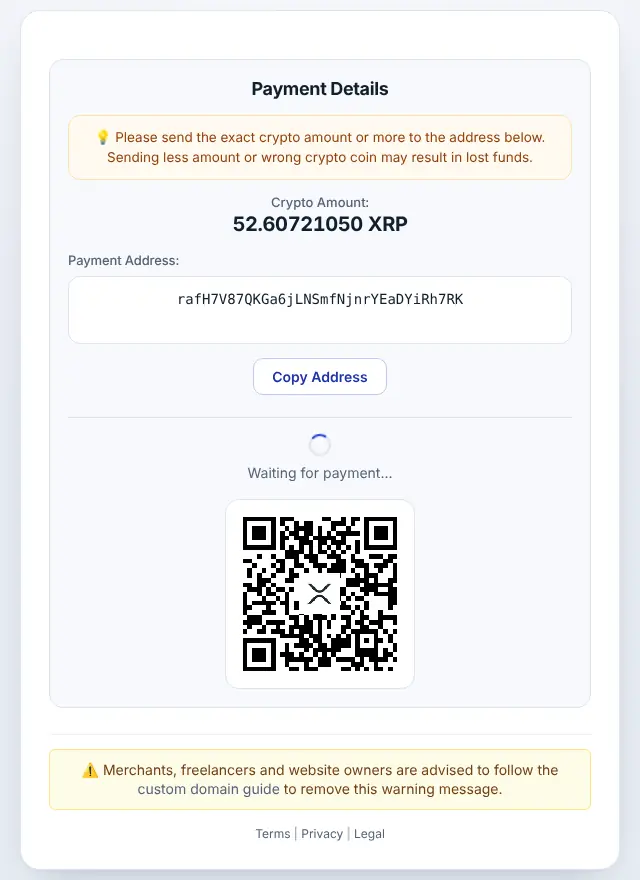
Step 5: Order completed automatically
When the payment is confirmed, the order completes and the blockchain transaction ID appears on the order under Downloads › Orders, with every confirmation in the order notes.
XRP on Easy Digital Downloads: good to know
- Minimum: 2 XRP at the time of writing (live minimums). A new address needs 1 XRP reserve; the first payout covers it.
- Timing: XRP Ledger payments are final in a few seconds.
- Callbacks:
address_outlists your payout asr…?dt=TAG, even if you entered an X-address. - Orders priced in a volatile coin are valued when the confirmation arrives; raise Underpayment tolerance (default 2%) slightly if needed.
- An "unknown coin" note means a different coin arrived than chosen: check it before releasing the order.
- Confirmations go to
index.php?edd-listener=paygate_crypto: your site must be reachable at its public https address. - Order statuses: Completed with "received … TXID"; On Hold for "underpaid" or "unknown coin".
Frequently asked questions
Do customers need to enter a destination tag?
No. They pay a one-time address without a tag. Only your payout wallet may have one.
Can I paste an X-address into the field?
Yes. The plugin accepts r…, r…?dt=TAG and mainnet X-addresses.
Do I need an account or API key?
No. The plugin only needs your public wallet addresses. Neither you nor your customers register with PayGate.to.
Which other platforms support XRP?
WooCommerce · WHMCS · FOSSBilling · Magento · OpenCart · PrestaShop · Paymenter. See Accept XRP payments for the overview.