
Want crypto too? Our free Magento crypto module is the only crypto payment gateway with instant payouts for Solana, Monero, Zcash and Bitcoin. Read the Magento crypto guide.
What you need before you start
- Magento 2.4.4 or newer: Magento Open Source, Adobe Commerce or Mage-OS, with PHP 7.4 or 8.1 to 8.5. Works with the default Luma checkout.
- SSH access with Composer (recommended), or FTP plus someone who can run
bin/magentocommands. - Magento cron running (it cancels unpaid orders and releases their stock).
- Your store must be online so payment confirmations can reach it.
- A USDC wallet address on Polygon (starts with
0x). Step 1 shows how.
Check that your business is allowed first: see the prohibited businesses list.
Get your USDC (Polygon) payout wallet
Card payments are paid out to a USDC wallet on the Polygon network. That is a normal wallet address that starts with 0x. Payouts may arrive as USDC, USDT (Polygon or BEP-20), ETH or the POL native token, and the same address receives all of them.
- Use a self-custodial wallet that only you control, for example Trust Wallet, MetaMask, Rabby or a hardware wallet. You can create a free one in a few minutes with the Trust Wallet app on your phone.
- Copy your Polygon address (it starts with
0x, 42 characters).
Never use an exchange deposit address (Binance, Coinbase, Kraken and so on). Exchanges can freeze or lose payouts sent to deposit addresses. Also do not paste the USDC token contract address: it is not a wallet.
Install the module
Run these commands over SSH from your Magento root folder (the folder that contains bin/magento). Composer is the recommended way because it makes updates easy.
composer config repositories.paygate-card vcs https://github.com/paygate-to/Magento-Instant-Payment-Gateway
composer require paygate/module-instant-payment:dev-main
bin/magento module:enable PayGate_InstantPayment
bin/magento setup:upgrade
bin/magento setup:di:compile
bin/magento setup:static-content:deploy
bin/magento cache:flush
setup:di:compile and setup:static-content:deploy are only needed in production mode (add your locales to the deploy command if your store is not in English).
No SSH or Composer? Install manually
- Download Magento-Instant-Payment-Gateway-main.zip and unzip it.
- Upload the files from inside the
Magento-Instant-Payment-Gateway-mainfolder toapp/code/PayGate/InstantPayment/in your Magento folder (create the folders if needed). - Run the same
bin/magentocommands as above, starting withmodule:enable(your host can run them for you).
Open the payment settings
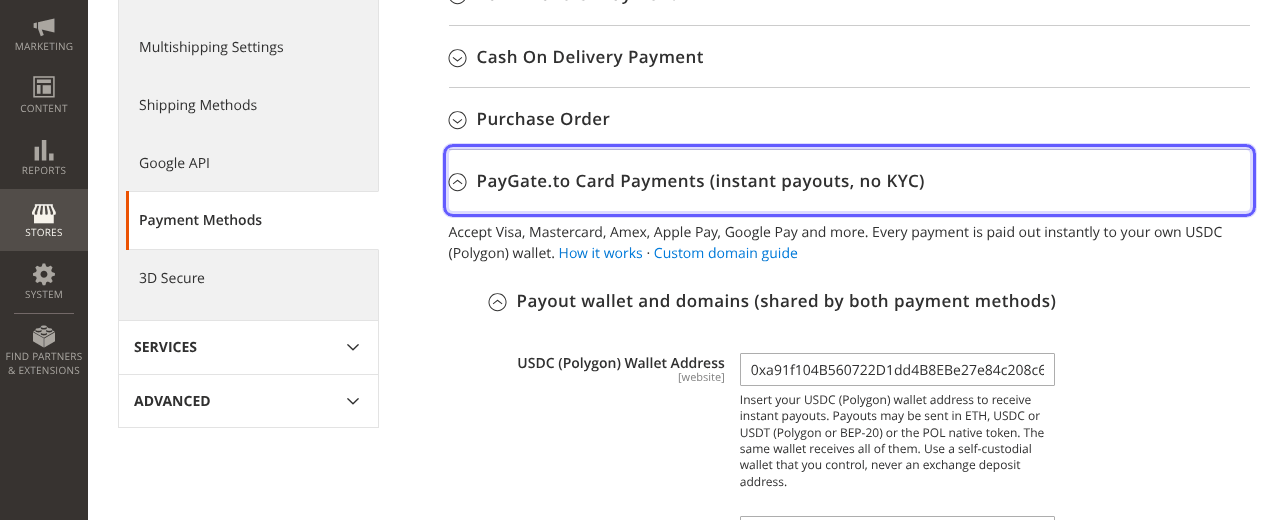
In your Magento admin, go to Stores › Configuration › Sales › Payment Methods and expand PayGate.to Card Payments (instant payouts, no KYC).
Paste your wallet
Under Payout wallet and domains (shared by both payment methods):
- Paste your Polygon address into USDC (Polygon) Wallet Address.
- Leave Custom Domain (
checkout.paygate.sbs) and Custom API Domain (api.paygate.to) as they are, unless you set up your own domain. - Fees Tolerance (40% by default): how far below the total a payment may be before the order is put on hold for you to review.
- Cancel Unpaid Orders After (hours): unpaid orders are cancelled after 24 hours by default and their stock is released.
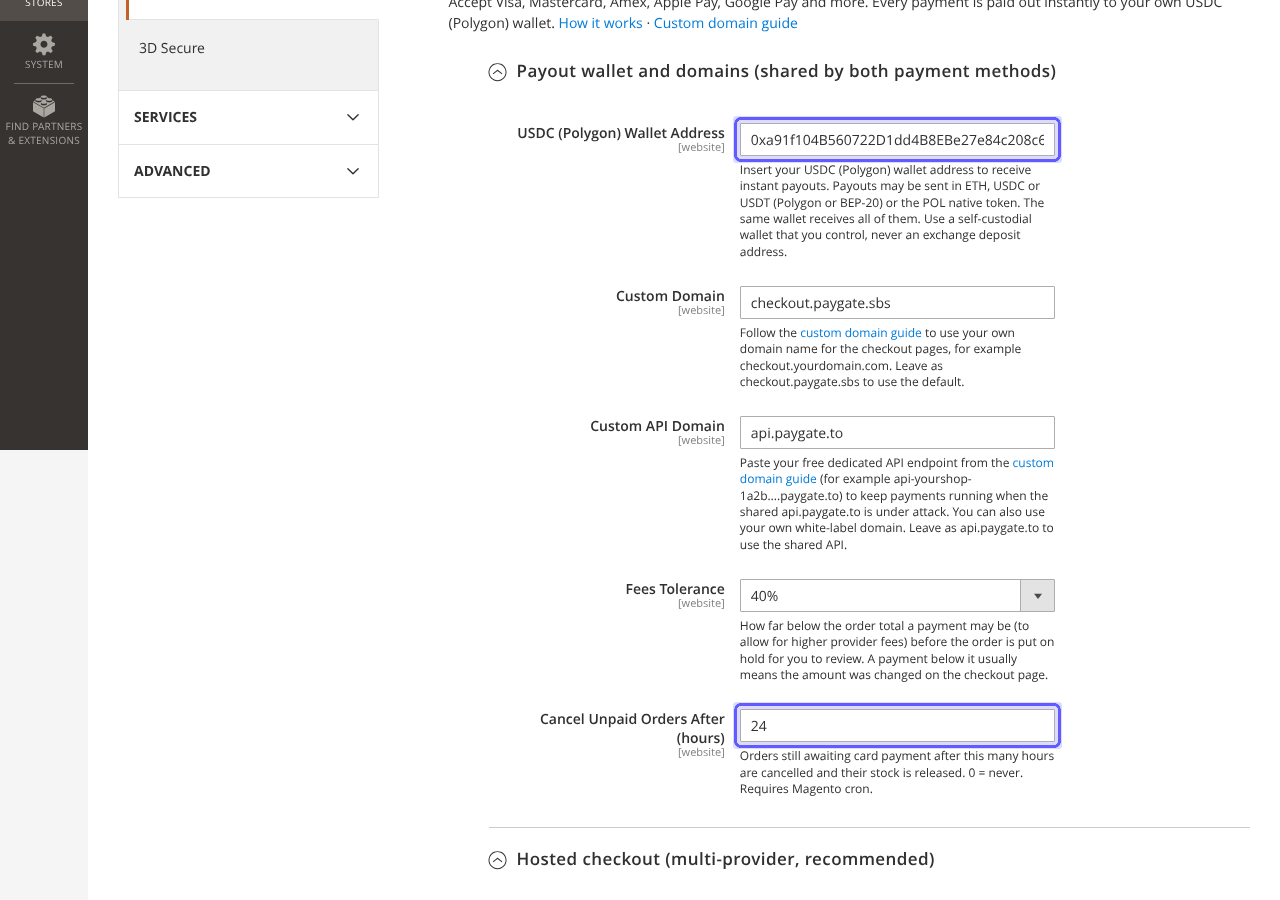
The card payment methods stay hidden at checkout until a valid wallet is saved. An invalid address is refused when you click Save Config.
Turn on the hosted checkout and save
Expand Hosted checkout (multi-provider, recommended), set Enabled to Yes and give it a clear Title such as Credit / Debit Card. Optionally add your logo and colours for the payment page. Click Save Config.
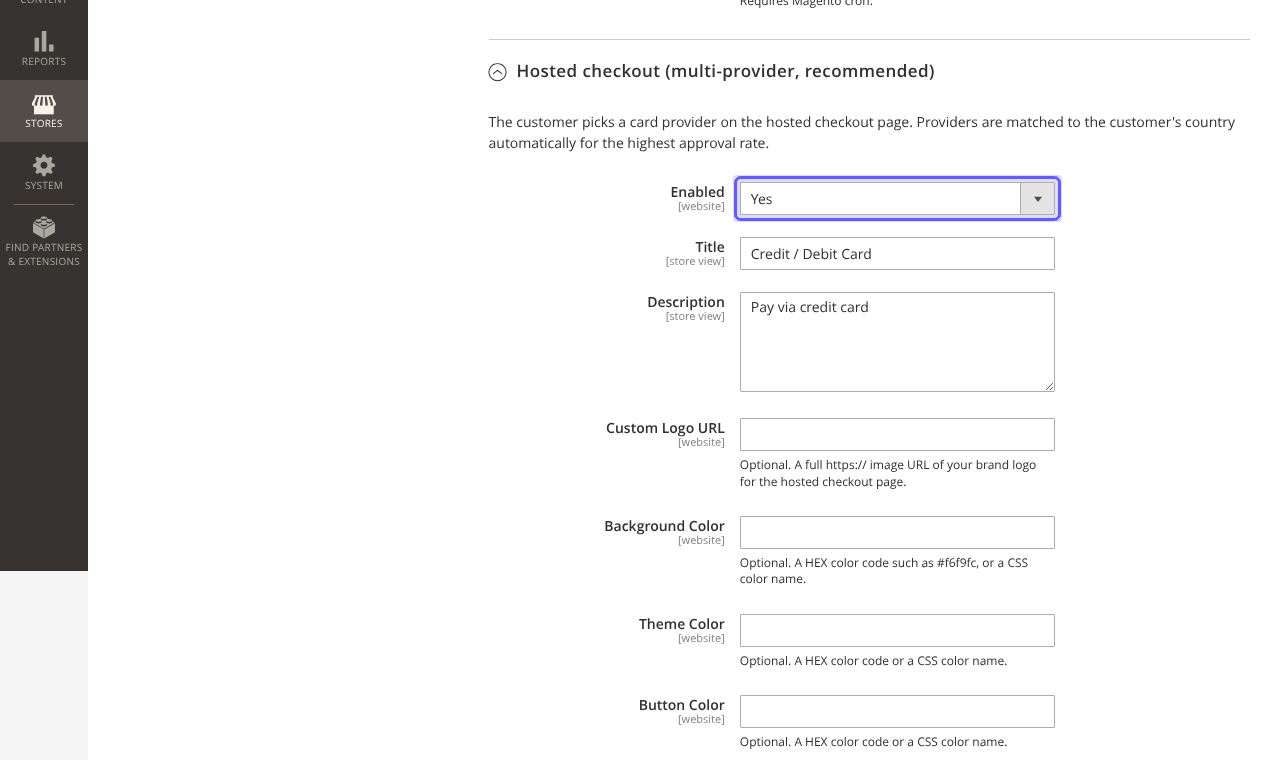
The second method, Single provider, sends customers to one provider you choose with its Provider Tag (see the provider list) and Minimum Amount (USD). If you enable both, give them different titles.
Place a test order
In a private window, add a product to the cart and check out. Choose Credit / Debit Card and click Place Order. The customer is taken to the secure payment page to pay with Visa, Mastercard, Apple Pay, Google Pay and more.
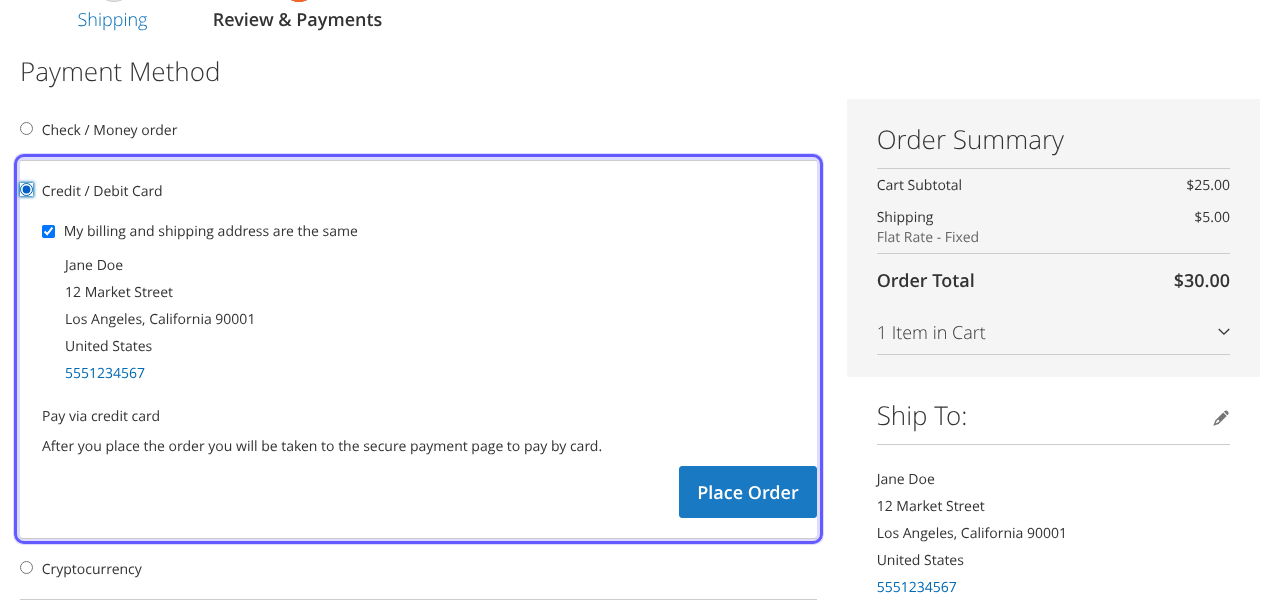
Card minimums range from about $1 to $30 depending on the provider (see the minimums). If PayGate.to cannot be reached, the order is not placed and the customer is asked to try again.
The order is invoiced automatically
The order is created as Awaiting card payment. When the payment is confirmed, it is invoiced and moves to Processing, and Magento sends the order and invoice emails. The admin order page shows the amounts and transaction IDs.
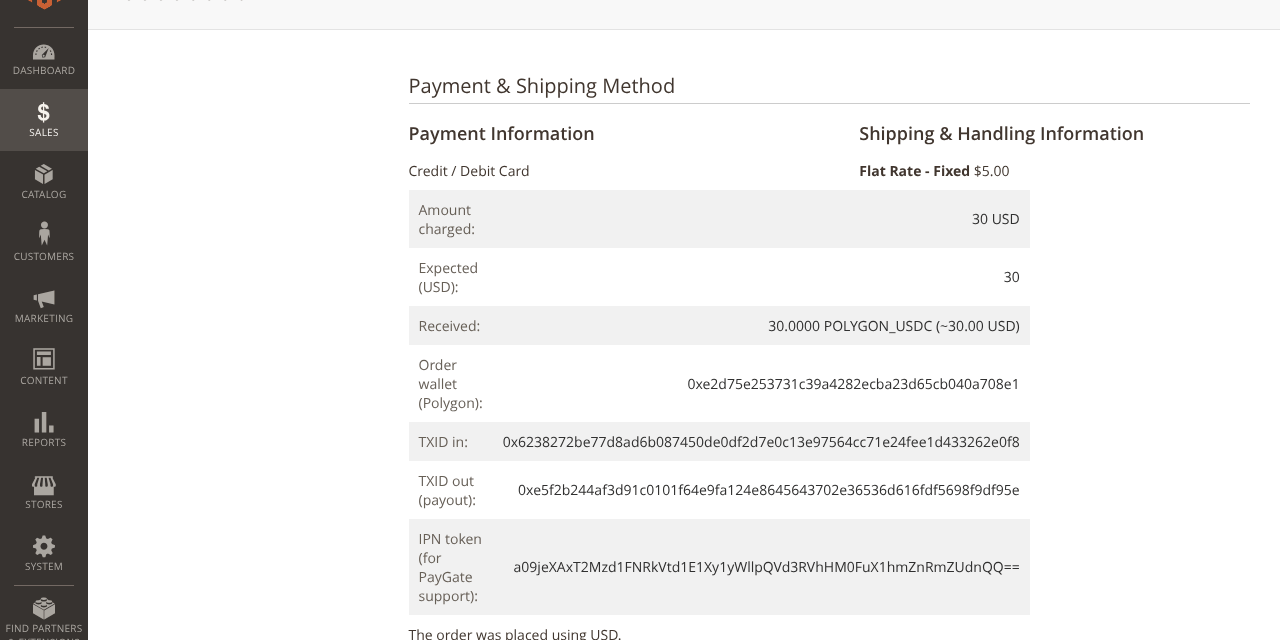
Your payout arrives in your wallet at the same time. Follow it with the payout tracker.
All settings explained
| Setting | What it does | Default |
|---|---|---|
| USDC (Polygon) Wallet Address Required | Receives the payouts (shared by both methods). | – |
| Custom Domain | Domain of the hosted payment page. | checkout.paygate.sbs |
| Custom API Domain | Your dedicated API endpoint or white-label domain. | api.paygate.to |
| Fees Tolerance | How far below the total a payment may be before the order is put On Hold. | 40% |
| Cancel Unpaid Orders After (hours) | Cancels unpaid orders and releases stock (0 = never). Needs cron. | 24 |
| Hosted checkout: Enabled, Title, Description | The recommended multi-provider method. | No, Credit Card |
| Custom Logo URL, colours | Branding for the hosted payment page. | Empty |
| Single provider: Provider Tag, Minimum Amount (USD) | One provider of your choice. | Off (moonpay, 15) |
How orders are updated
| Order status | When |
|---|---|
| Awaiting card payment | The order was placed and the customer went to the payment page. |
| Processing | The payment was confirmed; the order is invoiced. |
| On Hold | The payment was below your Fees Tolerance; a note explains it for your review. |
| Canceled | Still unpaid after the Cancel Unpaid Orders After time. |
Troubleshooting and FAQ
The card method does not appear at checkout.
Save a valid USDC (Polygon) Wallet Address and set Enabled to Yes, then flush the cache. Check the store view scope if you use several websites.
The customer paid but the order is still Awaiting card payment.
The confirmation URL /paygate/callback/index must be reachable from the internet: do not put it behind a password, IP allow-list or maintenance mode. On Adobe Commerce with Website Restrictions, allow it for guests. Check var/log/paygate_card.log.
Why does the order say Awaiting card payment instead of Pending Payment?
The module uses its own status so Magento’s generic 8-hour pending payment cleanup does not cancel orders while a provider is still confirming a payment. Its own cron job cancels them after your chosen number of hours.
Do I need an account, API key or KYC?
No. Your wallet address is all you need. Never contact or create accounts at any of the payment providers.
What are the fees?
1% plus the provider’s fees. Payments are final with zero chargebacks.
How do I update the module?
Run composer update paygate/module-instant-payment, then bin/magento setup:upgrade (plus compile and deploy in production) and flush the cache.
Other platforms and next steps
The same card gateway is available for every major platform:
Stuck? Our team replies fast.Send us your platform, a screenshot and the order number if you have one.
Chat with support