
Want crypto too? Our free FOSSBilling crypto module is the only crypto payment gateway with instant payouts for Solana, Monero, Zcash and Bitcoin. Read the FOSSBilling crypto guide.
What you need before you start
- FOSSBilling 0.7.2 or newer and an admin account (tested on 0.7.2 and 0.8.8).
- Access to your server files: FTP/SFTP or your hosting File Manager.
- FOSSBilling reachable at its public https address. Payment confirmations are sent to
https://your-site/ipn.php. - A USDC wallet address on Polygon (starts with
0x). Step 1 shows how.
Check that your business is allowed first: see the prohibited businesses list.
Get your USDC (Polygon) payout wallet
Card payments are paid out to a USDC wallet on the Polygon network. That is a normal wallet address that starts with 0x. Payouts may arrive as USDC, USDT (Polygon or BEP-20), ETH or the POL native token, and the same address receives all of them.
- Use a self-custodial wallet that only you control, for example Trust Wallet, MetaMask, Rabby or a hardware wallet. You can create a free one in a few minutes with the Trust Wallet app on your phone.
- Copy your Polygon address (it starts with
0x, 42 characters).
Never use an exchange deposit address (Binance, Coinbase, Kraken and so on). Exchanges can freeze or lose payouts sent to deposit addresses. Also do not paste the USDC token contract address: it is not a wallet.
Download the module
Download the latest version from our GitHub repository: FOSSBilling-Instant-Payment-Gateway-main.zip. The module is free and open source; you can read every line of code on GitHub.
Upload the folder to FOSSBilling
FOSSBilling payment gateways are single folders copied to your server. Use an FTP/SFTP program (such as FileZilla) or your hosting control panel’s File Manager.
- Unzip the file you downloaded. You get a folder called
FOSSBilling-Instant-Payment-Gateway-main. - Open your FOSSBilling folder on the server: the folder that contains
config.php,index.phpandipn.php. - Go into
library/Payment/Adapter/(you will seePayPalEmail.phpandStripe.phpthere) and upload thePayGateCardfolder into it.
FOSSBilling-Instant-Payment-Gateway-main/
├─ LICENSE        (not needed)
├─ README.md      (not needed)
├─ screenshots/   (not needed)
└─ PayGateCard/   ← upload this folder
<fossbilling>/library/Payment/Adapter/
├─ PayPalEmail.php
├─ Stripe.php
└─ PayGateCard/
    ├─ PayGateCard.php
    ├─ logo.png
    └─ keys/  (PayGate.to public key)
Upload the PayGateCard folder itself, not only the files inside it, and not one level deeper. The file must end up at library/Payment/Adapter/PayGateCard/PayGateCard.php.
Install the gateway in FOSSBilling
- Log in to your FOSSBilling admin area.
- Open System › Payment gateways and click New payment gateway.
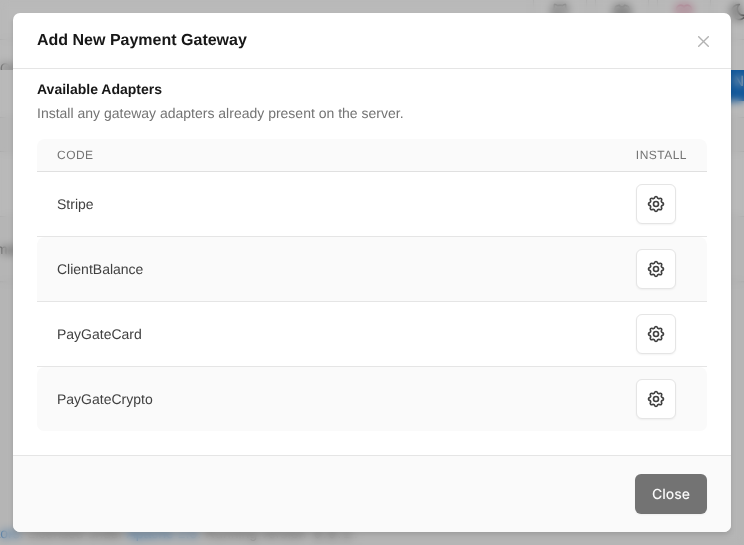
- Under Available Adapters, click the install button next to PayGateCard.
- The gateway now appears in the list of payment gateways. Click its title to open the settings.
Enter your wallet and enable the gateway
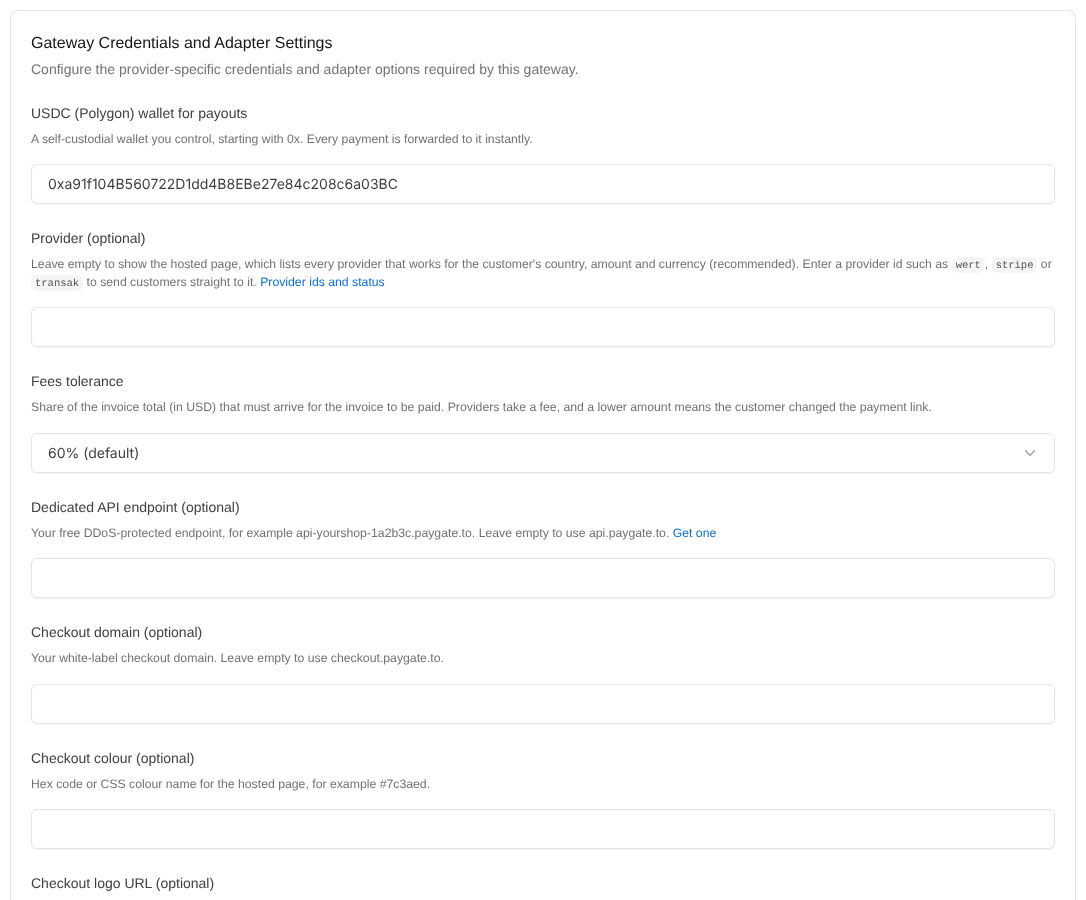
Set Payment Gateway Title to the name your clients see, for example “Credit / debit card”. Then fill in the adapter settings:
| Setting | What to enter |
|---|---|
| USDC (Polygon) wallet for payouts Required | Your Polygon address starting with 0x. |
| Provider | Leave empty for the hosted page with every provider that works for the client (recommended), or enter one provider id such as wert or stripe (provider list). |
| Fees tolerance | Share of the invoice total (in USD) that must arrive for the invoice to be paid. Providers take a fee, and a much lower amount means the client edited the payment link. Default 60%. |
| Dedicated API endpoint | Optional: your free endpoint such as api-yourshop-1a2b3c.paygate.to. See the custom domain guide. |
| Checkout domain, colour, logo URL | Optional white-label settings for the hosted page. |
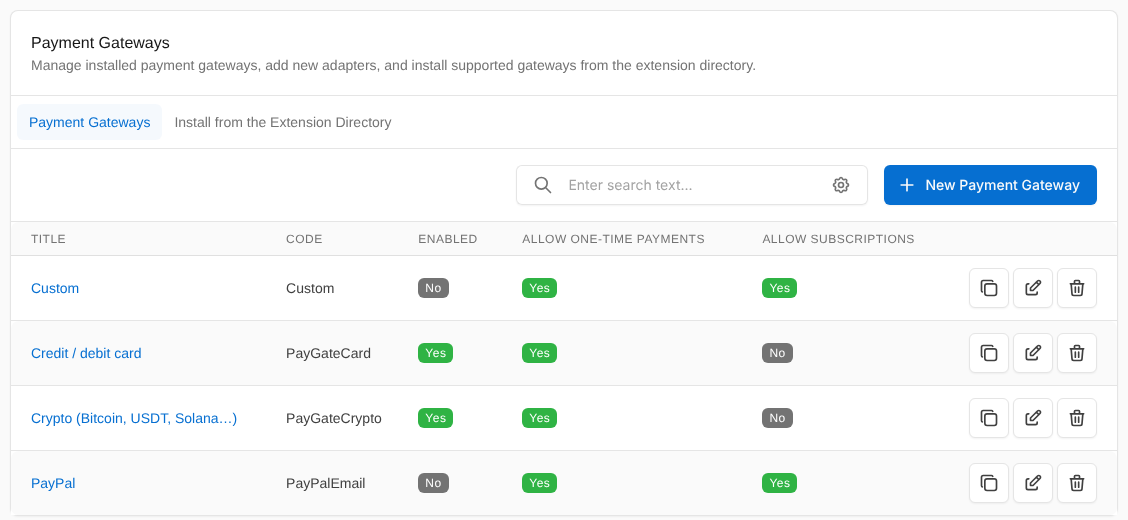
At the bottom of the page, switch on Enabled and Allow One Time Payments, then click Update Gateway (Update on FOSSBilling 0.7). Leave Enable Test Mode off: there is no test mode, small real payments are the way to test.
Every payment confirmation is signed by PayGate.to, and the callback URL is signed with your FOSSBilling installation’s secret. The module checks both, checks that the payout went to your wallet, ignores repeated confirmations and compares the amount with the invoice before anything is marked paid.
Test with an invoice
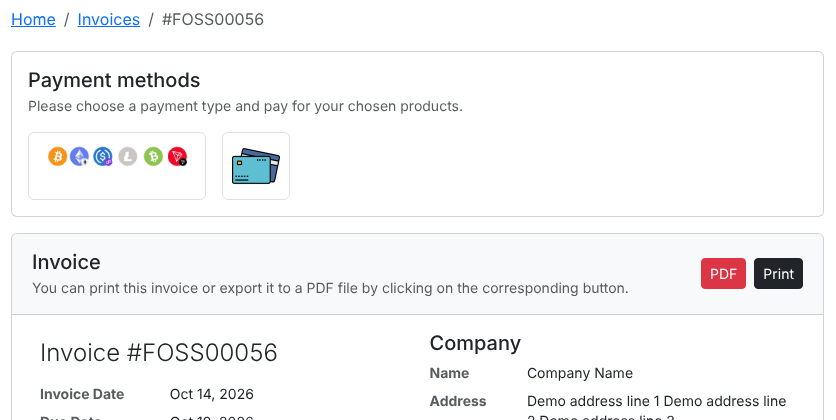
Create a small invoice for a client (or place an order as a client) and open it in the client area. The card method appears under Payment methods. The client clicks it and is taken to the secure payment page to pay with Visa, Mastercard, Apple Pay, Google Pay and more.
Card minimums range from about $1 to $30 depending on the provider (see the minimums), so test with an amount above the minimum.
The invoice is paid automatically
When the payment is confirmed, the module credits the client with the invoice total and pays the invoice, so FOSSBilling activates the order and sends your usual emails. Every confirmation is listed under Invoices › Transactions:
| Transaction | Meaning |
|---|---|
| Processed, status Paid | The invoice was paid. The note shows the USDC received and the blockchain transaction ids. |
| Code 3001 | Underpaid: less than your fees tolerance arrived, the invoice stays unpaid. The funds are already in your wallet. |
| Code 3002 | An unexpected token arrived on the payment address. Check it before releasing the order. |
| Code 3003 | Extra payment: the invoice was already paid (for example the client paid twice) or was cancelled. The funds are in your wallet; refund the client or add the amount to their balance. |
| Code 3004 | The payout did not go to your configured wallet, so the invoice was not paid. Contact support if you see this. |
| Processed, status Duplicate | PayGate.to sent the same confirmation again. Nothing more was credited. |
| Status Error, PayGate.to callback rejected | Not a genuine PayGate.to confirmation, or one that was changed. Nothing was paid. |
Payouts usually arrive in USDC; when a provider pays out in POL, ETH or BNB, the amount is priced in USD before it is compared.
Add funds invoices cannot be paid by card: card providers take their fee from the payment, so the full amount would never reach the client’s balance. Clients can add funds with the crypto module.
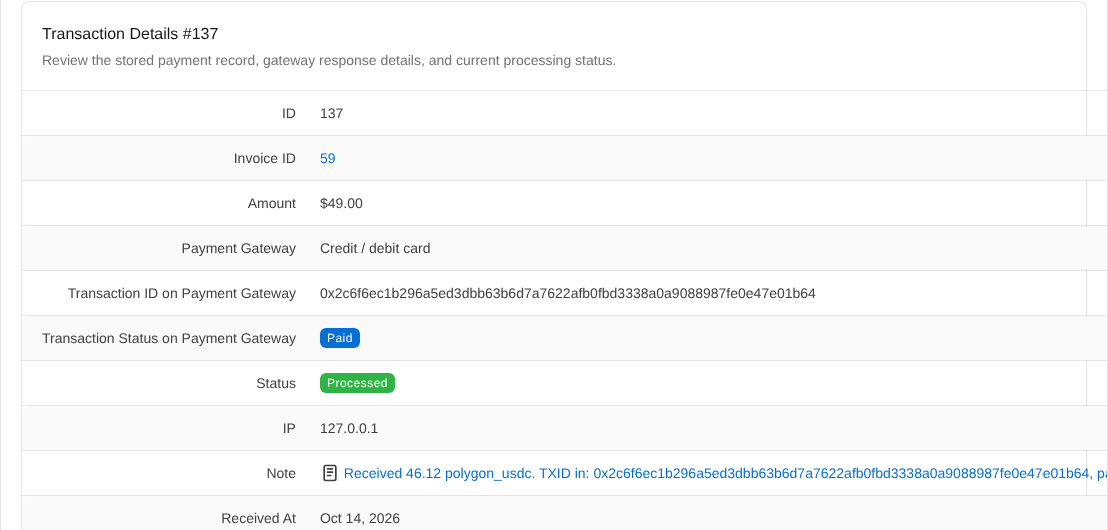
The payout reaches your wallet at the same time. Follow it with the payout tracker.
All settings explained
| Setting | What it does | Default |
|---|---|---|
| Payment Gateway Title (FOSSBilling) | Name of the payment method for clients. | PayGateCard |
| Accepted Currencies (FOSSBilling) | Currencies that can use the gateway. None selected = all. | All |
| USDC (Polygon) wallet for payouts Required | Receives the payouts. | – |
| Provider | Empty = hosted page with every available provider; a provider id = that provider only. | Empty |
| Fees tolerance | Share of the total (in USD) that must arrive: 60%, 70%, 80%, 90% or disabled. | 60% |
| Dedicated API endpoint | Your free DDoS-protected API endpoint. | api.paygate.to |
| Checkout domain | Your white-label checkout domain. | checkout.paygate.to |
| Checkout colour, Checkout logo URL | Branding for the hosted page. | Empty |
Building your own integration instead? The PHP SDK gives you the same wallets, payment links and signed callback checks in a few lines.
Troubleshooting and FAQ
PayGateCard is not in the New payment gateway list.
The folder is in the wrong place. The file must be at library/Payment/Adapter/PayGateCard/PayGateCard.php inside your FOSSBilling folder, not one level deeper. FOSSBilling 0.7.2 or newer is required.
The client paid but the invoice is still unpaid.
Open Invoices › Transactions. No transaction at all means the confirmation could not reach https://your-site/ipn.php: check that FOSSBilling uses its public https address and that nothing (maintenance mode, password protection, IP allow-lists, a firewall) blocks ipn.php. A transaction with code 3001 means the payment was below your fees tolerance.
The client sees "Payment could not be started".
Check the USDC (Polygon) wallet: it must be your own Polygon address starting with 0x. If it is correct, try again in a minute, or set your dedicated API endpoint.
Do I need an account, API key or KYC?
No. Your wallet address is all you need. Never contact or create accounts at any of the payment providers.
Does it support subscriptions?
Each invoice is paid on its own, including renewal invoices. Card details are never stored, so payments are not charged automatically.
What are the fees?
1% plus the provider’s fees, which vary per provider and amount.
Can clients charge back?
No. Payments are final and you will not receive chargebacks.
How do I update the module?
Download the latest zip and upload the PayGateCard folder again, overwriting the old files. Your settings are kept.
Other platforms and next steps
The same card gateway is available for every major platform:
Stuck? Our team replies fast.Send us your platform, a screenshot and the order number if you have one.
Chat with support