


Every coin your customer sends is forwarded straight to your own wallet the moment the payment is confirmed, with no holds, no sign up and no KYC. It works the same in all our plugins and modules: WooCommerce, Easy Digital Downloads, WHMCS, FOSSBilling, Paymenter, OpenCart, PrestaShop and Magento.
What you need before you start
- A WordPress website with WooCommerce 5.8 or newer (WordPress 5.8+, PHP 7.2+ with the OpenSSL extension).
- Your website must be online and able to make outbound HTTPS requests (to load the live coin list).
- WordPress installed at the root of your domain (not in a subfolder) and Permalinks set to anything except “Plain” (Settings › Permalinks), so the payment status on the QR page updates by itself.
- A wallet address for each coin you want to accept. Step 1 explains which ones.
- About 10 minutes. No sign up, no account, no API keys and no KYC.
Prepare your payout wallets
Crypto is forwarded to your own wallet addresses, one for each coin or network you want to accept. Prepare them before you start:
- Bitcoin (BTC): your Bitcoin address (usually starts with
bc1). - Solana (SOL and Solana tokens such as USDC and USDT on Solana): your Solana address.
- Monero (XMR) and Zcash (ZEC): your Monero and Zcash addresses.
- Ethereum and EVM networks (ETH, ERC20, BEP20, Polygon, Arbitrum, Base, Optimism, Avalanche-C): one
0xaddress covers all of them. - Any other coin you want, for example Litecoin, Dogecoin, Bitcoin Cash, Tron (TRC20 USDT) or TON.
Use self-custodial wallets that only you control (Trust Wallet, Exodus, Phantom for Solana, Cake Wallet for Monero, a hardware wallet and so on). Never use exchange deposit addresses, and always paste the address for the right network: a Bitcoin address in the Bitcoin field, a Solana address in the Solana field.
Install the plugin
You can install the plugin straight from your WordPress dashboard. Both options install exactly the same free plugin.
Option A: install from WordPress.org (easiest)
- In your WordPress admin, open Plugins › Add Plugin (called “Add New Plugin” in some WordPress versions).
- Search for Crypto Payment Gateway with Instant Payouts (by PayGate.to).
- Click Install Now, then Activate.
Option B: upload the zip file
- Download the zip from WordPress.org (or from GitHub).
- Open Plugins › Add Plugin and click Upload Plugin at the top.
- Click Choose File, select the zip and click Install Now, then Activate Plugin.
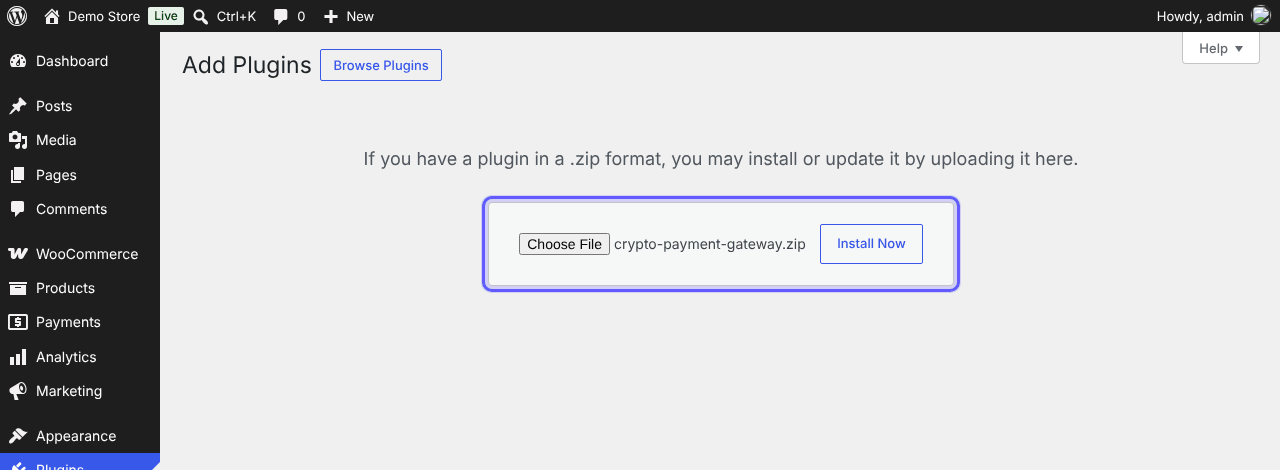
WooCommerce must be installed and active first: the plugin lists Requires: WooCommerce and, on WordPress 6.5 and newer, WordPress will not activate it without WooCommerce.
Activate the plugin
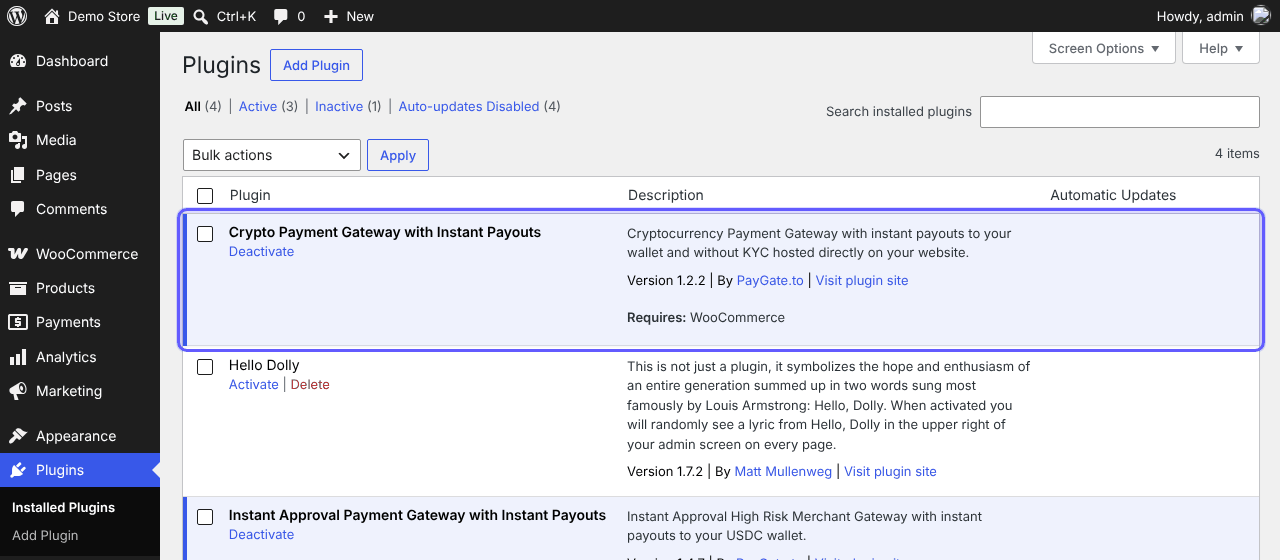
Click Activate Plugin. Crypto Payment Gateway with Instant Payouts now shows in your Plugins list as active.
Choose how customers pay
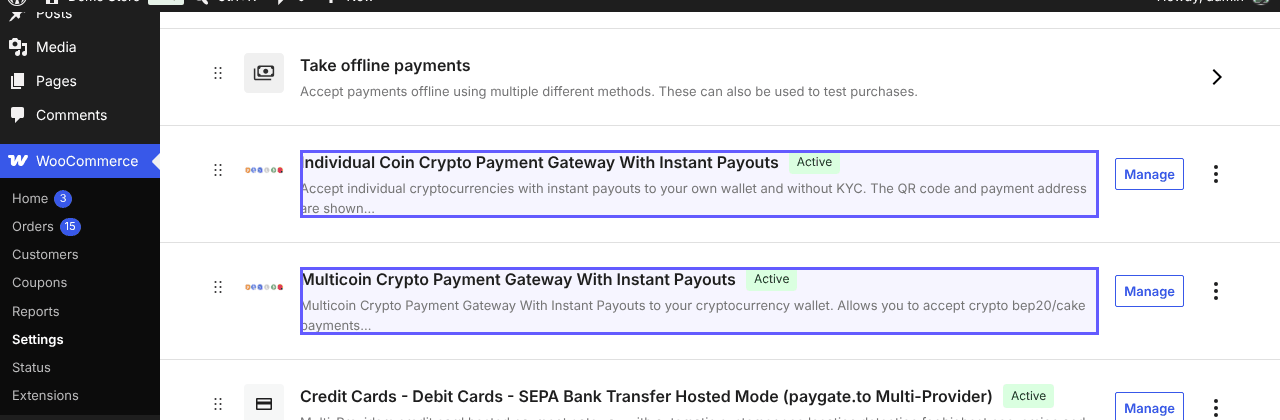
Go to WooCommerce › Settings › Payments. The plugin adds two payment methods. You can use one or both:
| Payment method | How the customer pays |
|---|---|
| Individual Coin Crypto Payment Gateway With Instant Payouts | The customer picks a coin at checkout and pays with a QR code on your own website. They never leave your store. |
| Multicoin Crypto Payment Gateway With Instant Payouts | One option for all coins: the customer picks any coin on the secure hosted checkout page. |
Set up individual coins (QR code on your site)
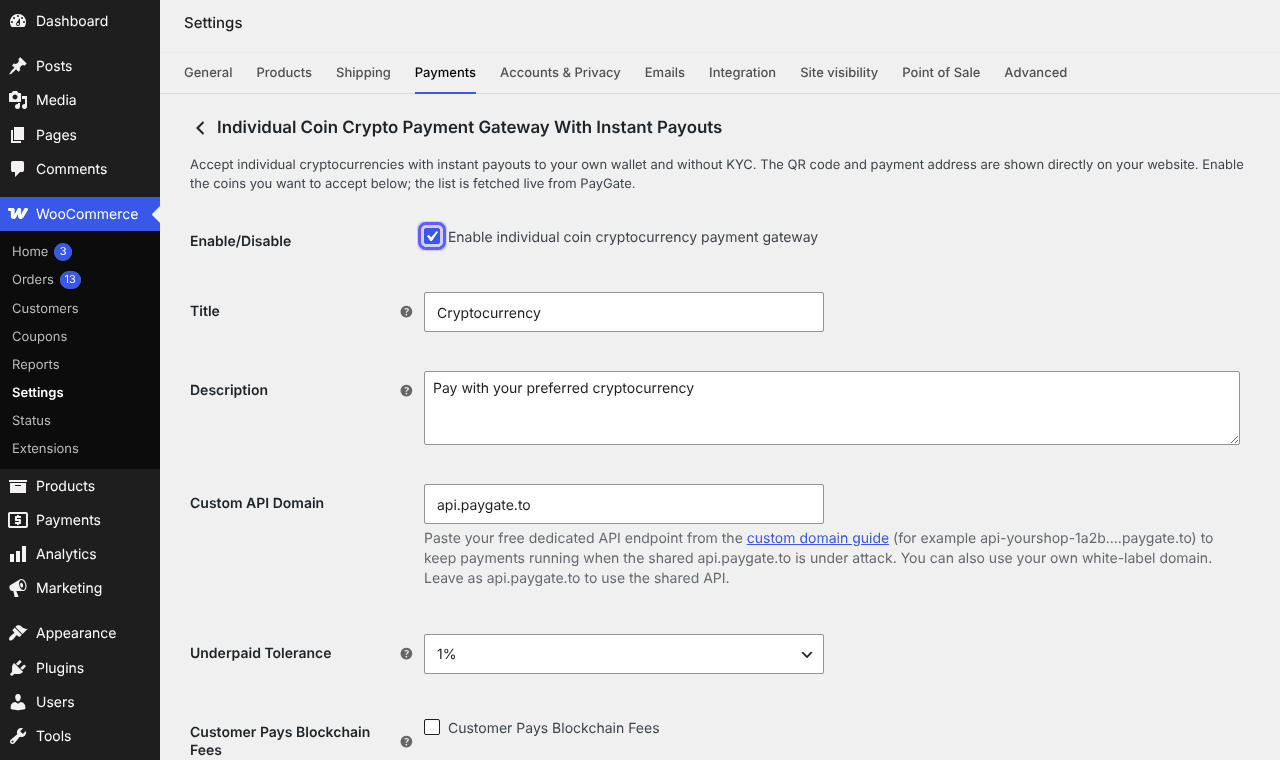
Click Manage next to Individual Coin Crypto Payment Gateway With Instant Payouts:
- Tick Enable/Disable.
- Keep Title (“Cryptocurrency”) or write your own.
- Leave Custom API Domain on
api.paygate.tounless you have your own endpoint. - Underpaid Tolerance: 1% (default) accepts a payment that is slightly below the total, because crypto prices move.
- Customer Pays Blockchain Fees: tick it if the customer should cover the network fee.
Below, the Accepted Coins table lists every coin and token PayGate.to supports, loaded live. For each coin you want to accept, tick it and paste its wallet address, then click Save changes.
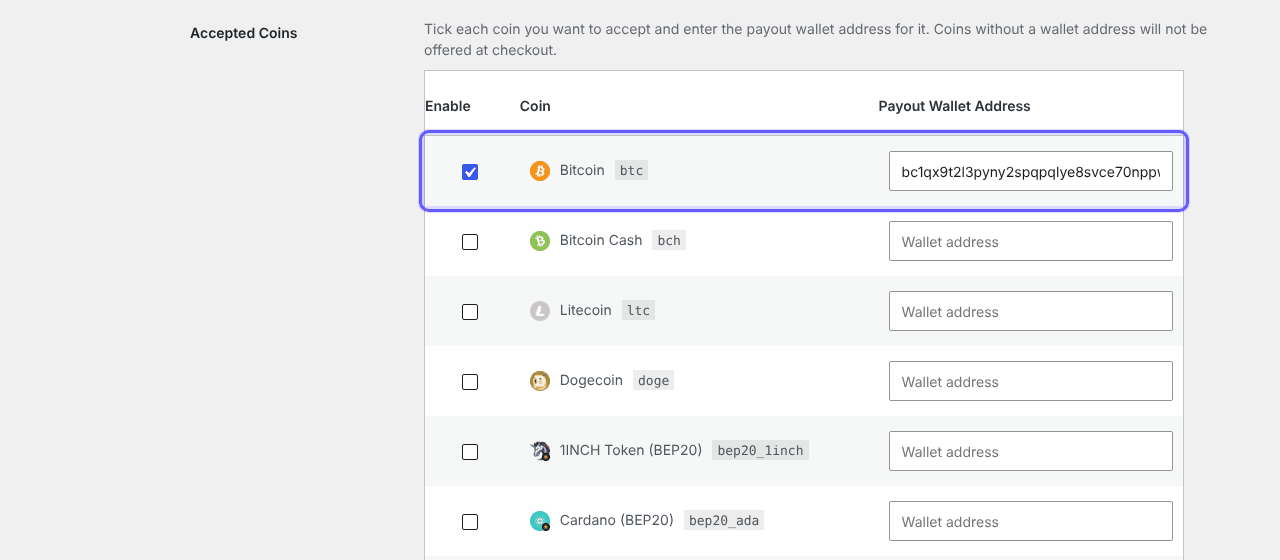
A coin needs both the tick and a wallet address. If no coin has both, the payment method stays hidden at checkout.
Optional: set up Multicoin (all coins on one page)
Click Manage next to Multicoin Crypto Payment Gateway With Instant Payouts, tick Enable/Disable and fill in a wallet for each network you want. Customers then choose their coin on the hosted checkout page.
| Wallet field | Accepts |
|---|---|
| EVM Wallet Address | ETH and tokens on ERC20, BEP20, Polygon, Optimism, Arbitrum, Base, Avax-C |
| Bitcoin Wallet Address (BTC) | Bitcoin |
| Solana Wallet Address (SOL) | SOL and Solana tokens |
| Monero Wallet Address (XMR) | Monero |
| Zcash Wallet Address (ZEC) | Zcash |
| Bitcoin Cash, Litecoin, Dogecoin, TRC20 (USDT-TRON), TON | Each network with its own field |
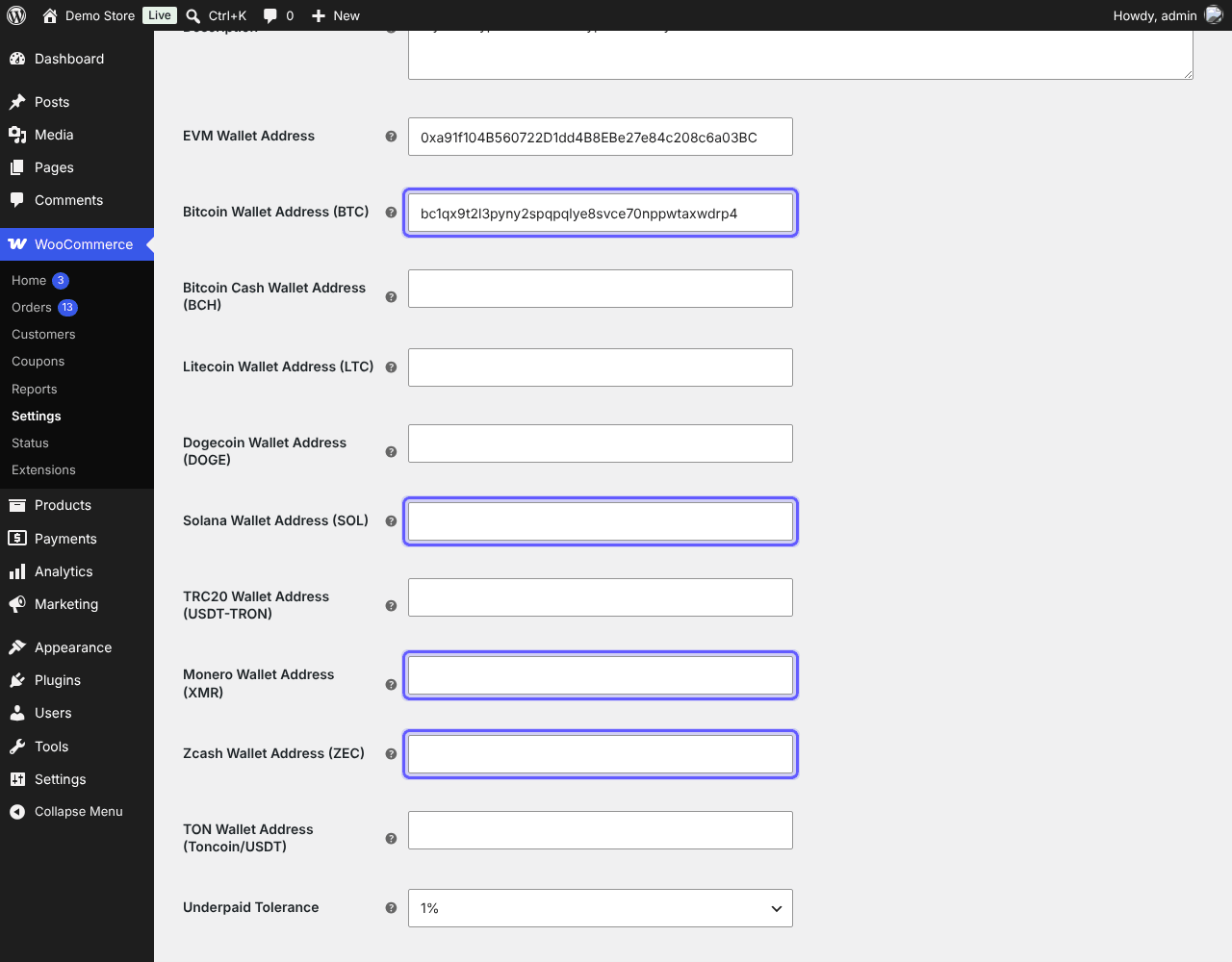
You can also add your logo and colours (Custom Logo URL, Background Color, Theme Color, Button Color) and, with the custom domain guide, run the checkout page on your own domain.
Place a test order
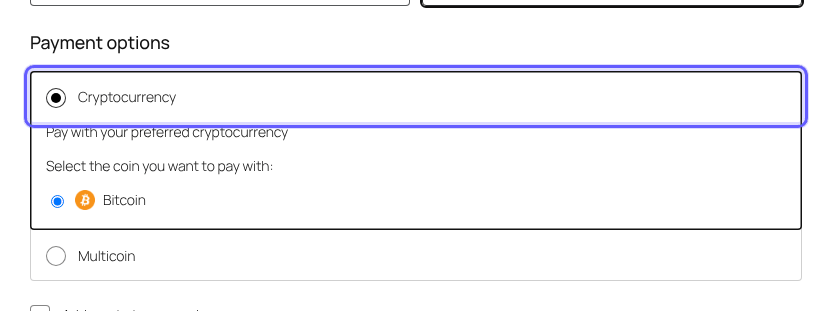
Open your store in a private window, add a product to the cart and go to checkout. Choose Cryptocurrency, pick a coin and place the order.
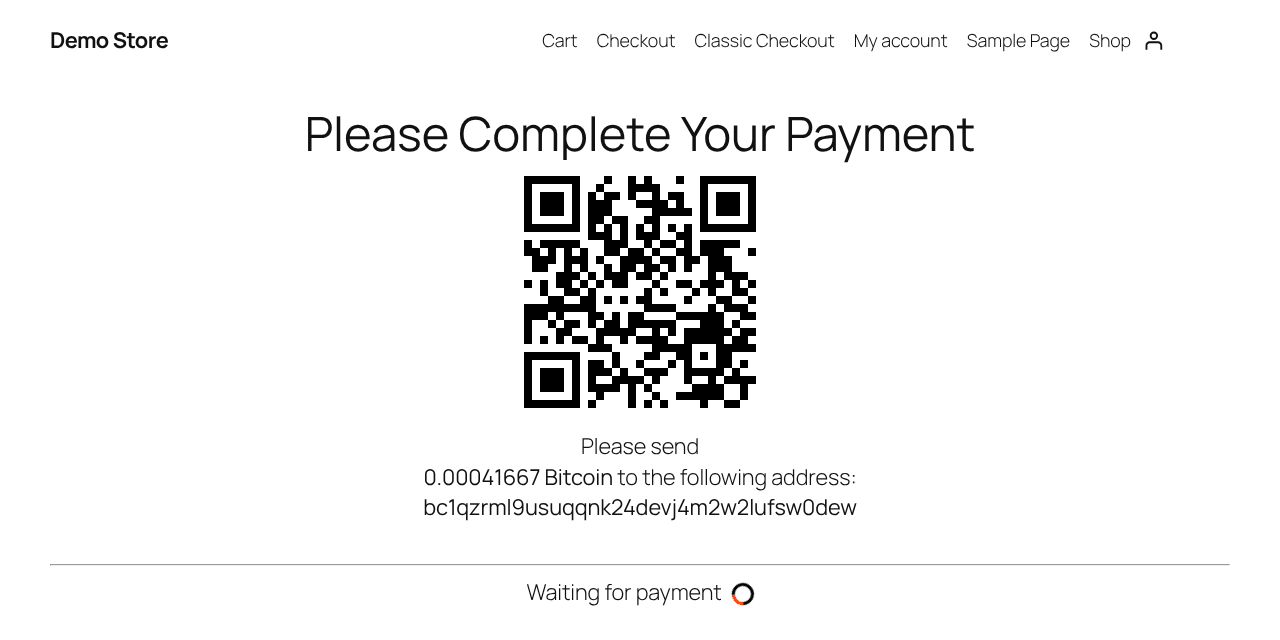
The customer then sees the payment page on your own website: a QR code, the exact amount and a unique address for this order. The status updates by itself once the payment arrives.
Each coin has its own minimum. Sending less than the minimum can leave the funds stuck at the payment address, so check the minimum per coin before you test.
The order is marked paid and you are paid out
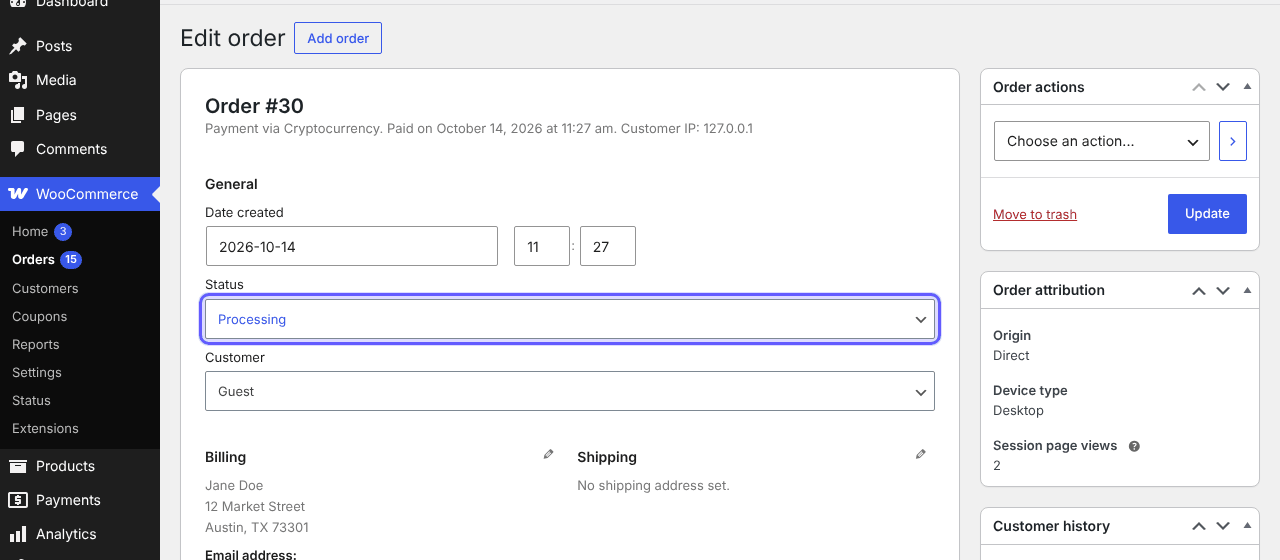
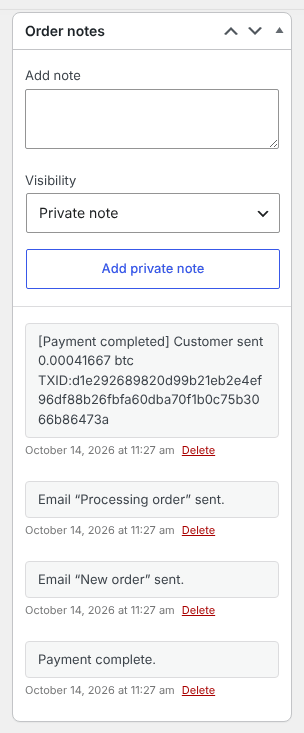
When the payment is confirmed on the blockchain, the crypto is forwarded instantly to your wallet and your order moves to Processing. The order notes show the coin, the amount and the transaction ID.
All settings explained
| Setting | What it does | Default |
|---|---|---|
| Enable/Disable | Shows or hides the payment method at checkout. | Off |
| Title | Name at checkout. | Cryptocurrency (individual coins) / Multicoin |
| Description | Text under the title at checkout. | Pay with your preferred cryptocurrency / Pay via crypto Multicoin cryptocurrency |
| Custom API Domain | Your free dedicated API endpoint or white-label domain. | api.paygate.to |
| Custom Domain (Multicoin) | Domain of the hosted checkout page. | checkout.paygate.sbs |
| Underpaid Tolerance | Accepts payments slightly below the total (0% to 10%). | 1% |
| Customer Pays Blockchain Fees | Adds the estimated network fee to the amount the customer sends. | Off |
| Accepted Coins | Tick a coin and enter its payout wallet (individual coins). | None |
| Wallet fields (Multicoin) | One payout wallet per network. | Empty |
| Custom Logo URL, colours (Multicoin) | Branding for the hosted checkout page. | Empty |
How orders are updated
| Order status | When |
|---|---|
| Pending payment | The order was placed and is waiting for the crypto payment. |
| Processing | The full amount (within your tolerance) was received. Virtual and downloadable orders go to Completed. |
| Failed | Less than the required amount was received. A note shows how much arrived and how much was required. |
If a customer sends a different coin or uses the wrong network, the payment is valued at what was actually received, and our system still forwards supported tokens to you automatically.
Troubleshooting and FAQ
Is Monero, Zcash and Solana really supported with instant payouts?
Yes. PayGate.to is the only crypto payment gateway with instant payouts for Solana (SOL), Monero (XMR), Zcash (ZEC) and Bitcoin (BTC). Payments are forwarded straight to your own wallet, in every plugin and module.
The crypto payment method does not show at checkout.
For individual coins, at least one coin needs both the tick and a wallet address. For Multicoin, at least one wallet field must be filled. Also make sure the method is enabled. If WooCommerce still shows no methods, follow this guide.
The coin table says it could not fetch the coin list.
Your server could not reach PayGate.to to load the coins. Save and reload the page; if it keeps happening, ask your host to allow outbound HTTPS connections to api.paygate.to (or your custom API domain).
The QR page says "Error checking payment status".
Set Settings › Permalinks to any option except “Plain” and save. The status check uses the WordPress REST API at /wp-json/, so it also needs WordPress at the root of your domain rather than in a subfolder.
The customer paid but the order is still Pending payment.
Make sure your site is public and that no security plugin, firewall or cache blocks /wp-json/. Confirmations are signed by PayGate.to and checked by the plugin. See the troubleshooting guide.
The customer sent too little.
Payments below your Underpaid Tolerance mark the order Failed with a note showing the amount received. You decide what to do; the funds received are already in your wallet.
What are the fees?
1.5% flat rate plus blockchain fees. With Customer Pays Blockchain Fees turned on, the customer covers the network fee.
Do I need an account, API key or KYC?
No. There is no registration and no KYC for you or your customers. Your wallet addresses are all you need.
Is there a minimum order?
Yes, each coin has its own minimum, because amounts below it cost more in network fees than they are worth. See the minimum per coin.
Other platforms and next steps
The same crypto gateway is available for every major platform:
Stuck? Our team replies fast.Send us your platform, a screenshot and the order number if you have one.
Chat with support