


Every coin your customer sends is forwarded straight to your own wallet the moment the payment is confirmed, with no holds, no sign up and no KYC. It works the same in all our plugins and modules: WooCommerce, Easy Digital Downloads, WHMCS, FOSSBilling, Paymenter, OpenCart, PrestaShop and Magento.
What you need before you start
- OpenCart 4.0.2.0 or newer (OpenCart 3 is not supported).
- An admin account with permission to install extensions.
- Your store must be online and able to make outbound HTTPS requests (to load the live coin list). PHP needs the OpenSSL extension.
- A wallet address for each coin you want to accept. Step 1 explains which ones.
Prepare your payout wallets
Crypto is forwarded to your own wallet addresses, one for each coin or network you want to accept. Prepare them before you start:
- Bitcoin (BTC): your Bitcoin address (usually starts with
bc1). - Solana (SOL and Solana tokens such as USDC and USDT on Solana): your Solana address.
- Monero (XMR) and Zcash (ZEC): your Monero and Zcash addresses.
- Ethereum and EVM networks (ETH, ERC20, BEP20, Polygon, Arbitrum, Base, Optimism, Avalanche-C): one
0xaddress covers all of them. - Any other coin you want, for example Litecoin, Dogecoin, Bitcoin Cash, Tron (TRC20 USDT) or TON.
Use self-custodial wallets that only you control (Trust Wallet, Exodus, Phantom for Solana, Cake Wallet for Monero, a hardware wallet and so on). Never use exchange deposit addresses, and always paste the address for the right network: a Bitcoin address in the Bitcoin field, a Solana address in the Solana field.
Download the extension package
Download the extension package: paygatedottocrypto.ocmod.zip. It is free and open source (source on GitHub).
Keep the file name exactly paygatedottocrypto.ocmod.zip. OpenCart uses the name to install the extension, so a renamed file such as paygatedottocrypto.ocmod (1).zip fails with “Invalid file type!”. Also do not use GitHub’s green Code › Download ZIP button: that zip is the source code, not the installable package.
Upload and install the package
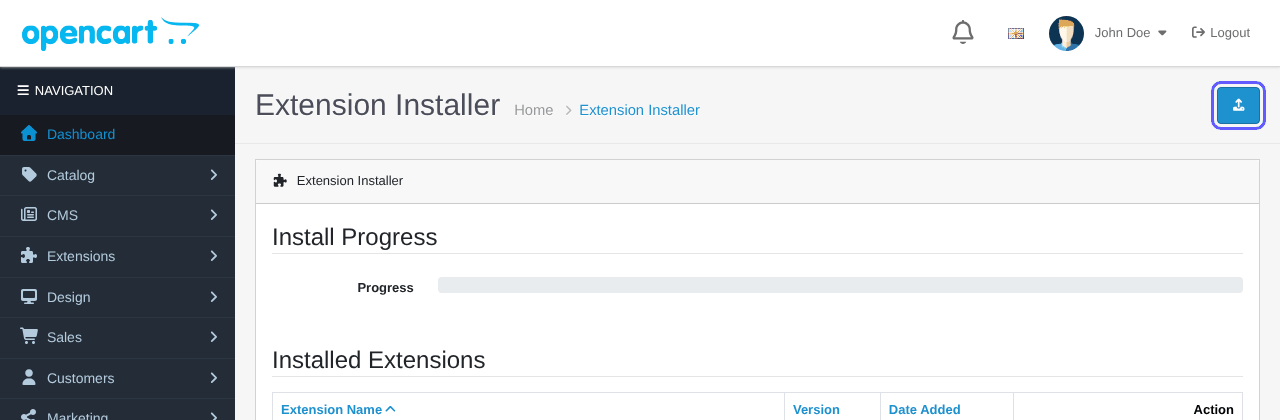
- In your OpenCart admin, open Extensions › Installer.
- Click the blue Upload button at the top right and select the
.ocmod.zipfile. - When the upload finishes, the package appears under Installed Extensions. Click the green + (Install) button on its row.
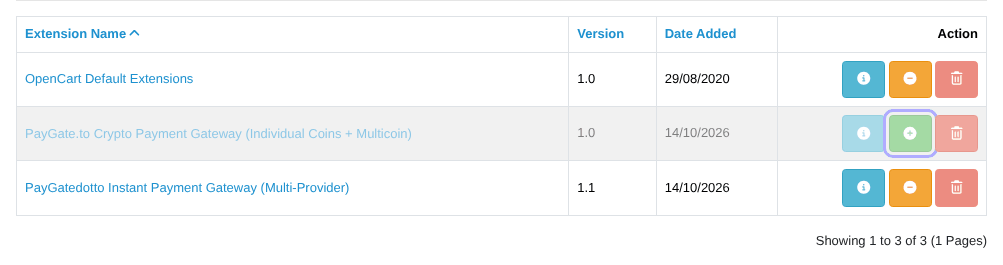
No modification refresh is needed: the package does not use OCMOD modifications.
Install the payment methods
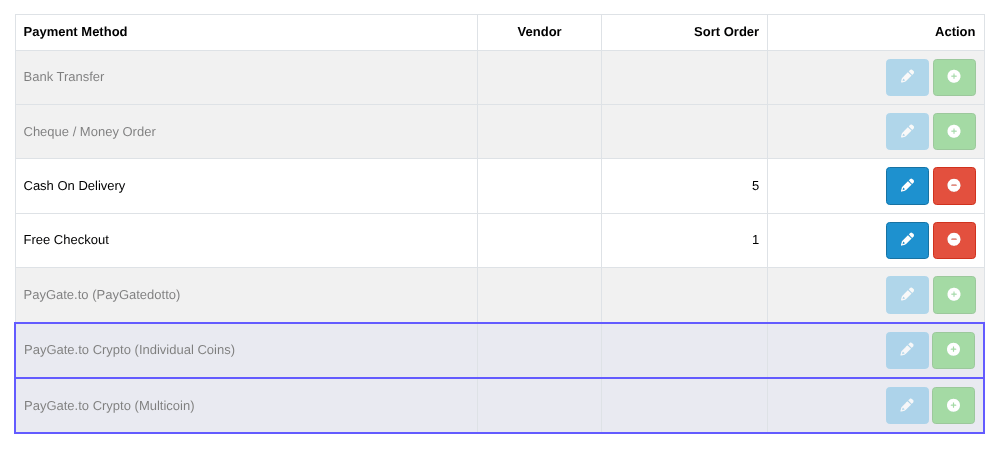
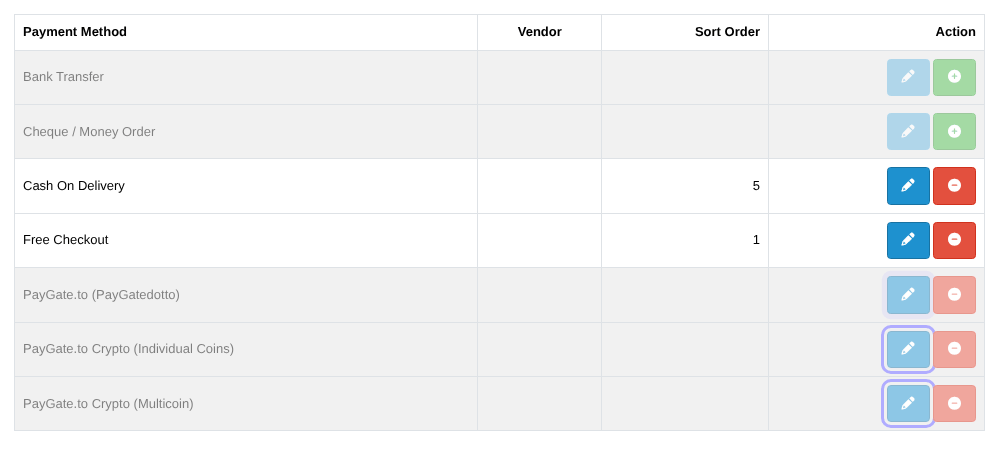
The package contains two payment methods. Install one or both in Extensions › Extensions › Payments with the green + button, then click the pencil to edit:
| Payment method | How the customer pays |
|---|---|
| PayGate.to Crypto (Individual Coins) | The customer picks a coin at checkout and pays with a QR code on your own store. |
| PayGate.to Crypto (Multicoin) | One option for all coins: the customer picks a coin on the secure hosted checkout page. |
Set up individual coins (QR code on your store)
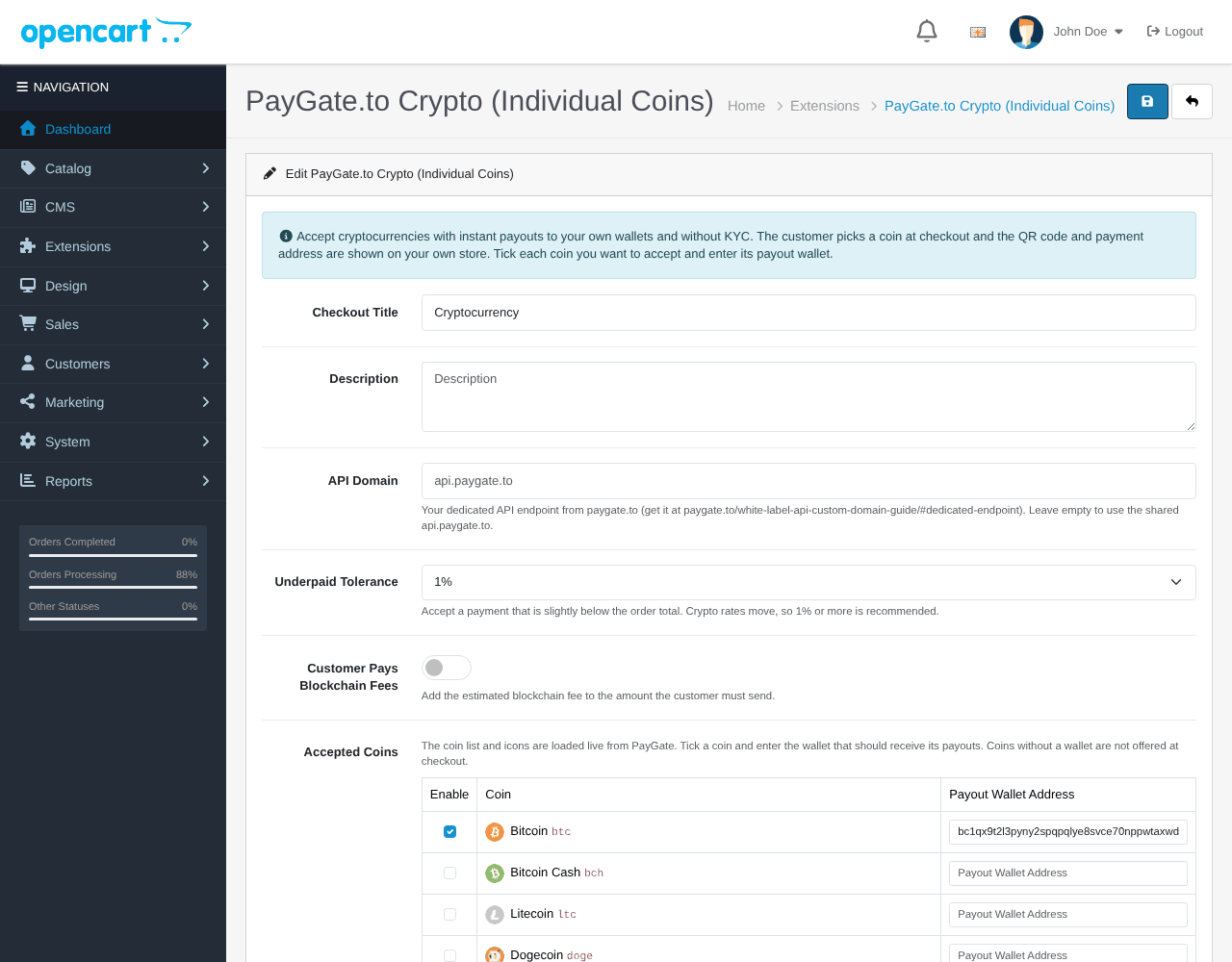
In PayGate.to Crypto (Individual Coins):
- Keep the Checkout Title (“Cryptocurrency”) or write your own.
- Leave API Domain empty unless you have your own endpoint.
- Underpaid Tolerance (1% by default) accepts a payment slightly below the total, because crypto rates move. Turn on Customer Pays Blockchain Fees if the customer should cover the network fee.
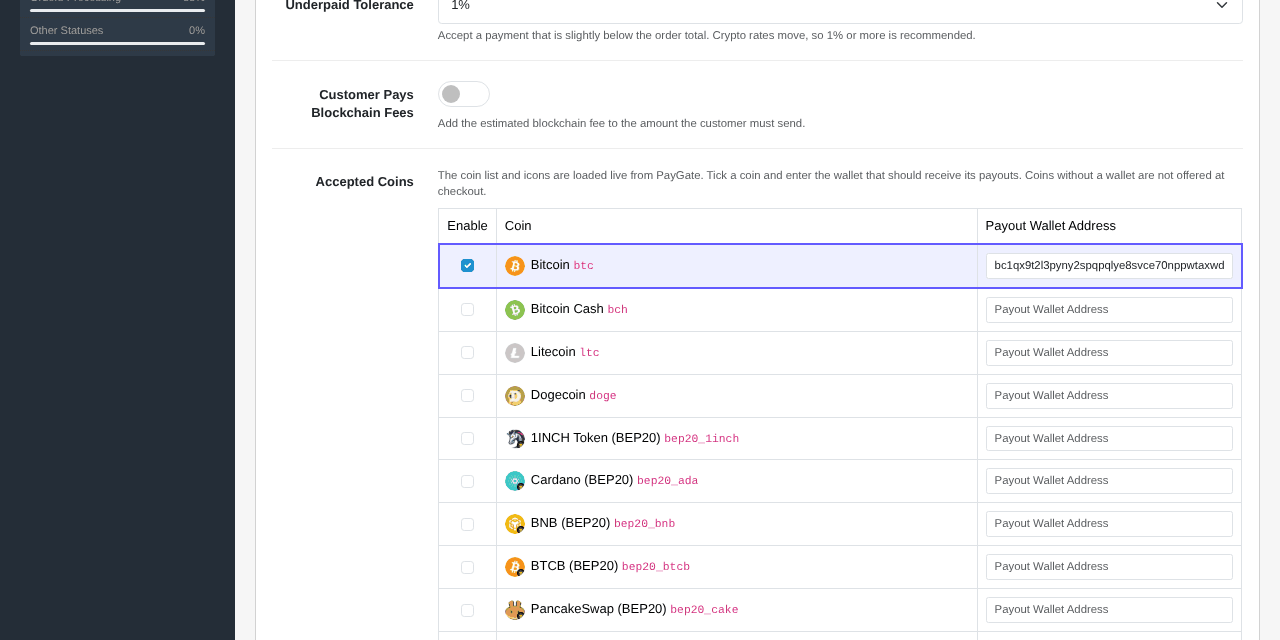
In Accepted Coins, tick each coin you want and paste its payout wallet. The list and icons are loaded live from PayGate.to.
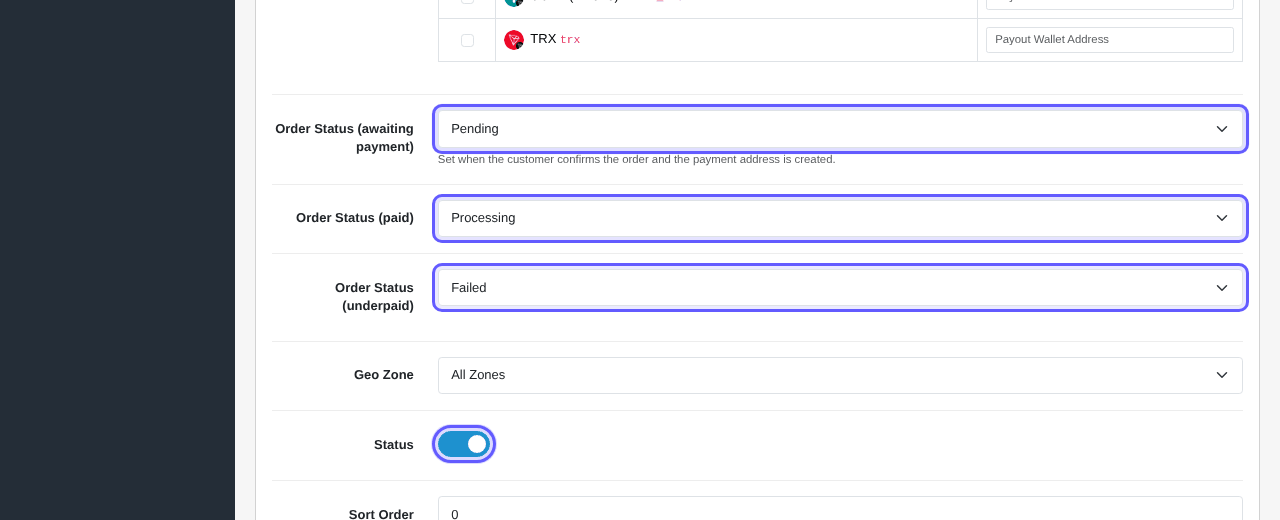
Check the three order statuses (the defaults are good), switch Status on and click Save.
If you see “Enable at least one coin and enter its payout wallet address”, no coin has both the tick and a wallet yet. “Wallet address looks invalid” means a wallet has spaces or characters that do not belong in an address.
Optional: set up Multicoin
In PayGate.to Crypto (Multicoin), fill in a payout wallet for each network you want under Payout wallets:
| Field | Accepts |
|---|---|
| EVM Wallet (ETH, ERC20, BEP20, Polygon, Arbitrum, Base, Optimism, Avalanche-C) | ETH and EVM tokens |
| Bitcoin Wallet (BTC) | Bitcoin |
| Solana Wallet (SOL and Solana tokens) | SOL, USDC and USDT on Solana and more |
| Monero Wallet (XMR) | Monero |
| Zcash Wallet (ZEC) | Zcash |
| Bitcoin Cash, Litecoin, Dogecoin, Tron (TRX, TRC20 USDT), TON | One field each |
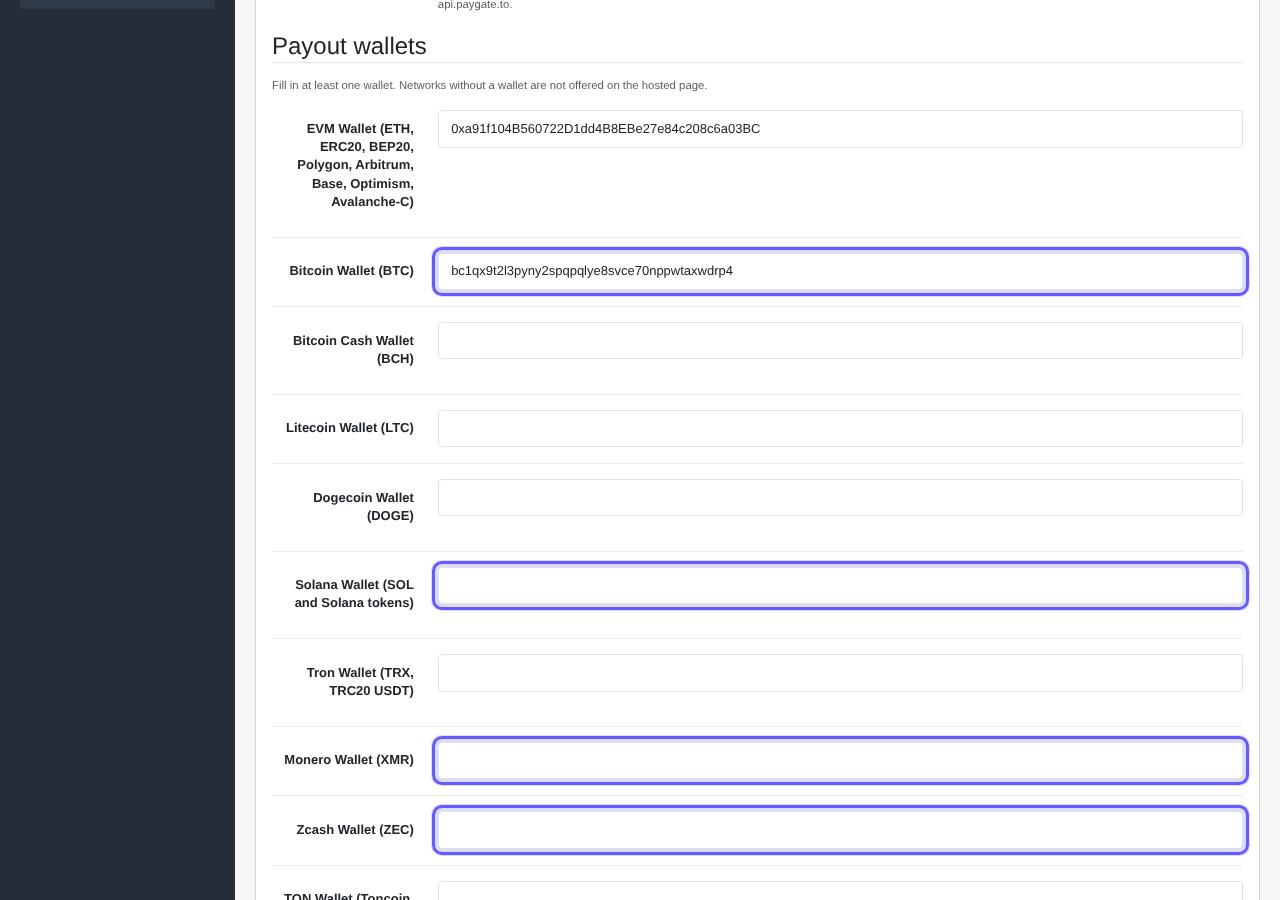
Optionally add your Logo URL and colours under Hosted page branding, and a Custom Domain from the custom domain guide. Switch Status on and save.
Place a test order
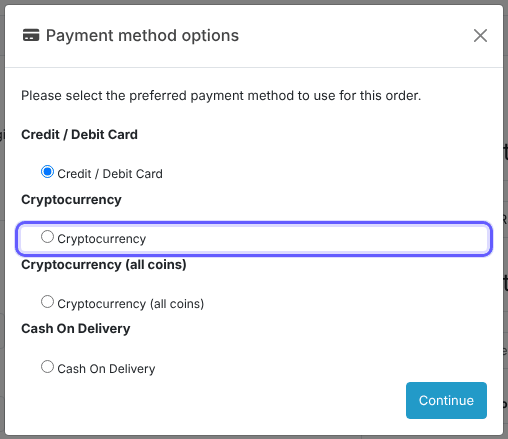
In a private window, add a product to the cart and go to checkout. Choose Cryptocurrency, pick a coin and click Confirm Order.
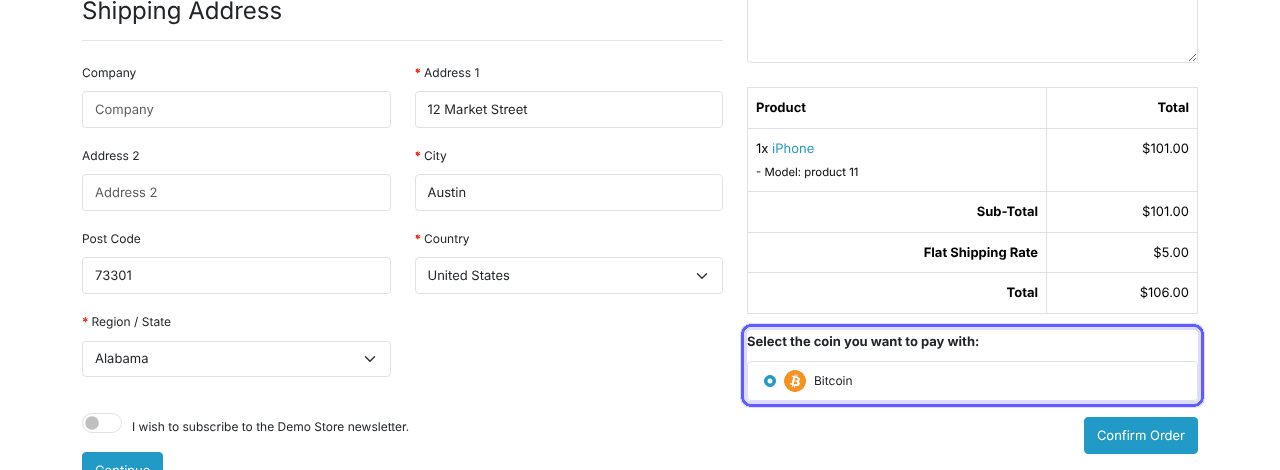
The customer lands on the payment page on your own store: a QR code, the exact amount, a unique address with a Copy button, and a live status box that updates by itself every 30 seconds. The quoted amount is guaranteed for 3 hours.
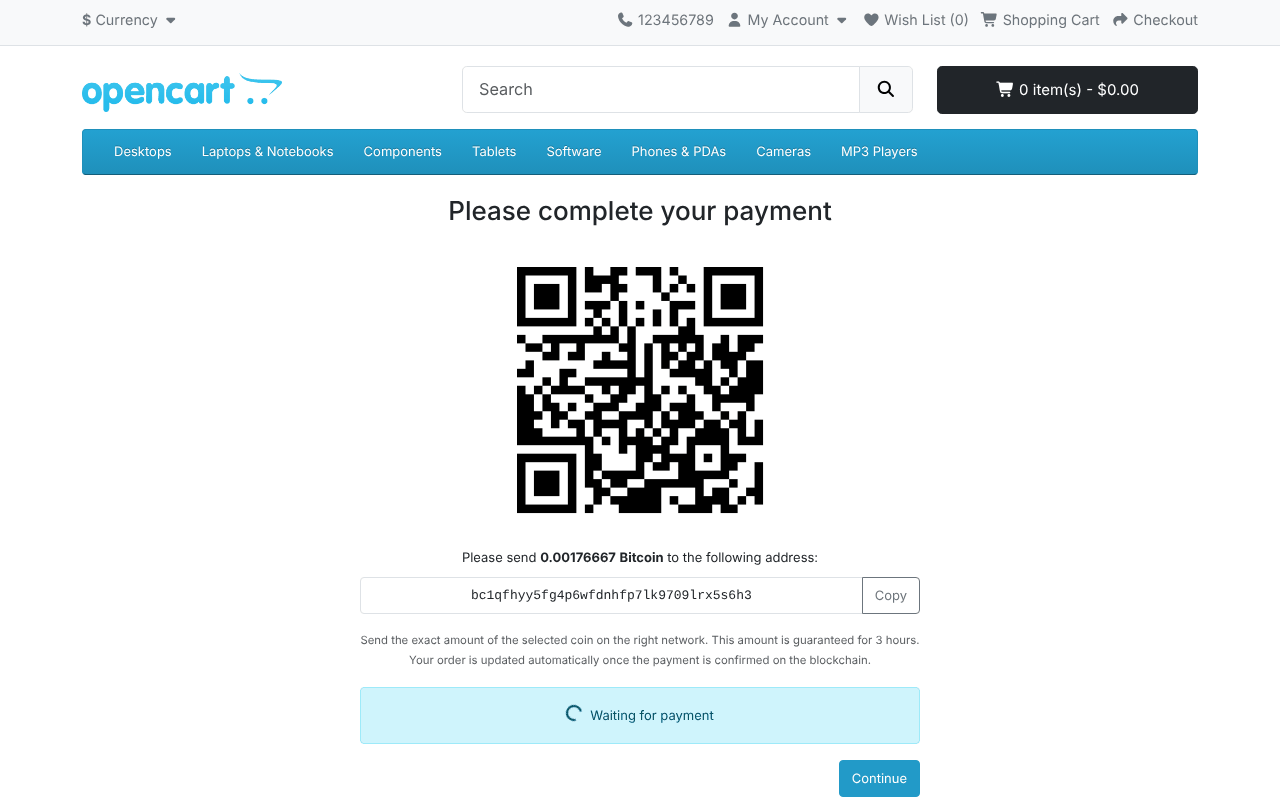
The order confirmation email contains the link to this page, so customers can come back to it. Each coin has its own minimum: see the minimum per coin.
The order is marked paid and you are paid out
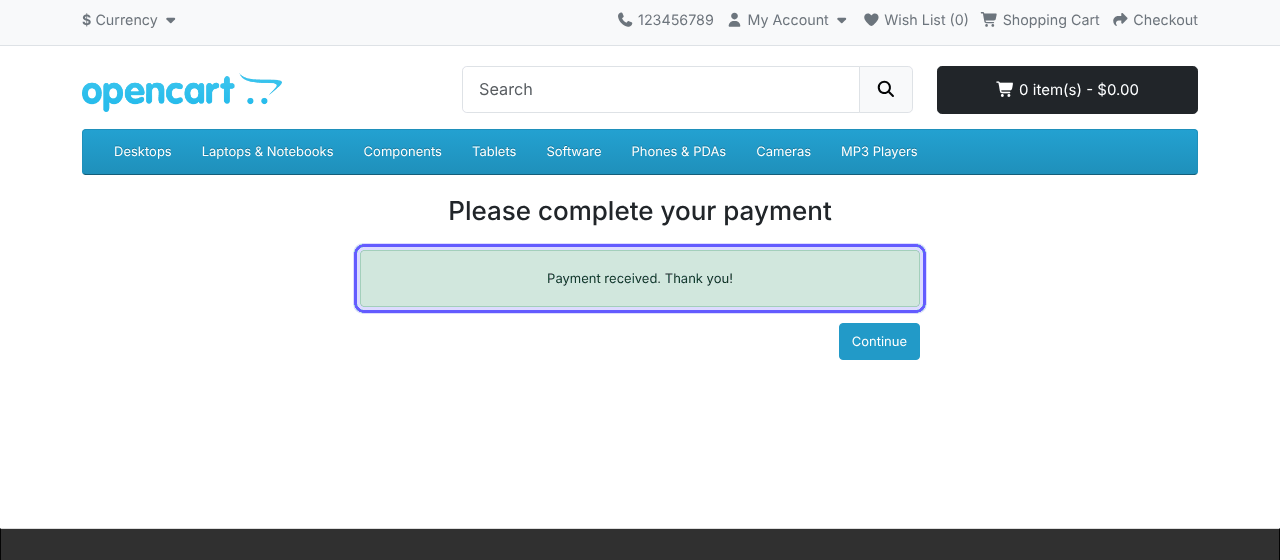
Once the payment is confirmed on the blockchain, the crypto is forwarded instantly to your wallet, the page shows Payment received and the order moves to your paid status.
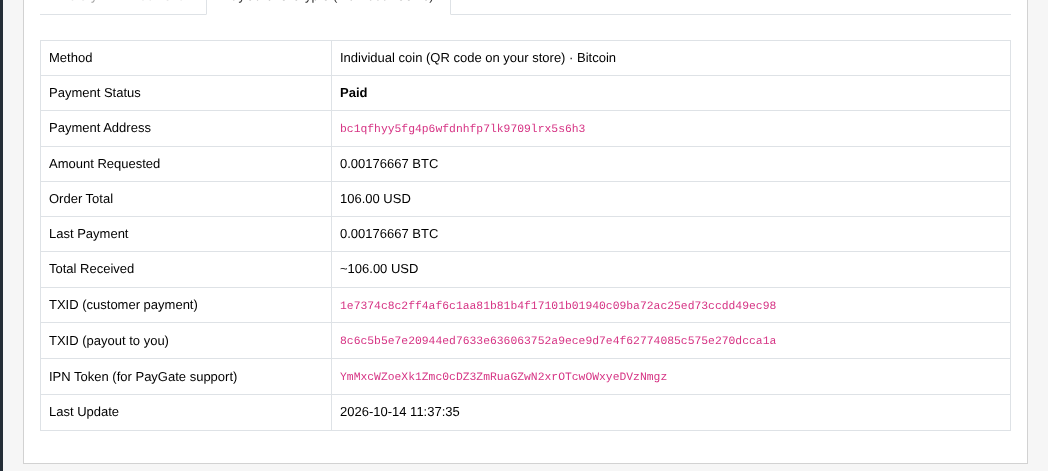
In Sales › Orders, the order has a PayGate.to Crypto (Individual Coins) or (Multicoin) tab with every detail: payment status, address, amounts, the customer’s TXID, the payout TXID to you and the IPN token for support.
All settings explained
| Setting | What it does | Default |
|---|---|---|
| Checkout Title | Name at checkout. | Cryptocurrency / Cryptocurrency (all coins) |
| Description | Text shown before Confirm Order. | Empty |
| API Domain | Your dedicated API endpoint. | Empty (uses api.paygate.to) |
| Custom Domain (Multicoin) | Domain of the hosted checkout page. | checkout.paygate.to |
| Underpaid Tolerance | Accepts payments slightly below the total (0% to 10%). | 1% |
| Customer Pays Blockchain Fees | Adds the estimated network fee to the amount to send. | Off |
| Accepted Coins (Individual) | Tick a coin and enter its payout wallet. | None |
| Payout wallets (Multicoin) | One wallet per network. | Empty |
| Order Status (awaiting payment / paid / underpaid) | Statuses used for each stage. | Pending / Processing / Failed |
| Logo URL, colours (Multicoin) | Branding for the hosted checkout page. | Empty |
| Geo Zone, Status, Sort Order | Standard OpenCart options. | All Zones / Off / 0 |
How orders are updated
| Stage | Order status (default) |
|---|---|
| Order confirmed, payment address created | Pending (customer notified with the payment link) |
| Full amount received (within your tolerance) | Processing (customer notified) |
| Less than the amount due | Failed. The customer can send the rest to the same address (for individual coins the payment page asks for it) and the order completes automatically. |
Payments to the same address add up. If you already moved an order to a later status (for example Shipped), a late payment never changes it back.
Troubleshooting and FAQ
Is Monero, Zcash and Solana really supported with instant payouts?
Yes. PayGate.to is the only crypto payment gateway with instant payouts for Solana (SOL), Monero (XMR), Zcash (ZEC) and Bitcoin (BTC), in OpenCart and every other module.
The settings show "Could not load the coin list from PayGate".
Your server could not reach PayGate.to. Reload the page in a moment; coins you already set up are kept. If it keeps happening, ask your host to allow outbound HTTPS to api.paygate.to (or your API Domain).
The crypto method does not appear at checkout.
Individual Coins needs at least one coin with both the tick and a wallet, and Multicoin needs at least one wallet. Check that Status is on and the Geo Zone matches.
The customer closed the payment page.
The order confirmation email and the order history contain the payment page link. The address and amount stay the same, and the amount is guaranteed for 3 hours.
The customer sent too little.
The order gets your underpaid status. For individual coins, the payment page asks the customer to send the rest to the same address; when it arrives, the order completes automatically.
Does it work with SEO URLs and maintenance mode?
Yes. Payment confirmations use a plain URL that SEO URLs cannot change, and they still reach your store while it is in maintenance mode.
Where do I see the transaction IDs?
On the admin order page, open the PayGate.to Crypto (Individual Coins) or (Multicoin) tab. It is visible to admin groups that have access to the extension.
What are the fees?
1.5% flat rate plus blockchain fees. Turn on Customer Pays Blockchain Fees to let the customer cover the network fee.
Other platforms and next steps
The same crypto gateway is available for every major platform:
Stuck? Our team replies fast.Send us your platform, a screenshot and the order number if you have one.
Chat with support