


Accept Cryptocurrencies Instantly

- ⚡Instant approval crypto gateway accept Bitcoin, ETH, USDC, USDT, Solana, Monero (XMR), Zcash and every other major cryptocurrency or token. Check the full list.
- 🏆 The only crypto payment gateway with instant payouts for Solana (SOL), Monero (XMR), Zcash (ZEC) and Bitcoin (BTC), in every plugin and module.
- ₿ Accept payments in multiple cryptocurrencies without extra code.
- 👤No sign up (instant access).
- 💲Instant payouts to your own wallet with every transaction.
Download Plugin (Start Now!)
💡 Click the platform logo to get the plugin files








📘 New to this? Follow our step-by-step crypto guides with screenshots:
⚠️ Our payment gateway is ready to be used instantly without any sign up or verification. To start accepting crypto on your site you just need your wallet address. Review the minimum order amount.
In case your website is built through a custom code or another system you can 📡 integrate our payment gateway using our API.
If you are a freelancer or you don't have a website you can generate a payment address.
Features
- The only crypto payment gateway with instant payouts for Solana (SOL), Monero (XMR), Zcash (ZEC) and Bitcoin (BTC). Supported in all our plugins and modules: WooCommerce, WHMCS, OpenCart, PrestaShop and Magento.
- Accept cryptocurrencies instantly, unique receiving address for every order.
- QR code displayed on your own site making payment easy for customer.
- Precise payment detection and our bot will notify your site after confirming transaction marking orders as paid.
- Once customer send to the specified receiving address our system will instantly forward crypto to your specified wallet without any delay or holds.
- No KYC and without any registration. Both the merchant and the customer stay anonymous
- Ready made open source plugins for major ecommerce platforms like WooCommerce, WHMCS, OpenCart, PrestaShop and Magento.
- Instant access to our crypto API without registration (NO API Keys), allowing you to integrate with any platform.
- You can control who will handle the blockchain payment fees the customer or you the merchant.
- Self hosted checkout (Customer never leave your website).
- Multitoken and multichain support for generated receiving addresses. If the customer made a mistake sending to the wrong token or send through the wrong network our system will still forward the crypto to you automatically. This feature is available for TRC-20, and EVM-based blockchains for all supported tokens across all chains in our system.
- 1.5% flat rate fee + blockchain fees.
- You can accept payments worldwide without restrictions due to the decentralized nature of how cryptocurrencies work.
Mass Payout & Wallet Fee Split
The mass payout feature can be set through the API and it would allow you to set up to 19 payout wallets while setting a percentage of the payout for each wallet. You can generate a crypto receiving wallet with multichain - multitoken support and when the customer send to the receiving generated wallet the crypto will be forwarded instantly to each payout wallet you have set; each payout wallet will receive the desired percentage you have set when making the API call. This can be an advanced method for both mass payout crypto forwarding or advanced rebranding of the crypto system.
You can read more about this feature by following the crypto API docs.
How it works?
- Install the plugin/module on your business WooCommerce, WHMCS, OpenCart, PrestaShop or Magento website. Otherwise you can integrate directly through our API.
- Insert your own wallet address for the desired cryptocurrency in your WordPress wp-admin dashboard or your WHMCS, OpenCart, PrestaShop or Magento admin dashboard.
- Save your settings and you are ready to instantly accept crypto.
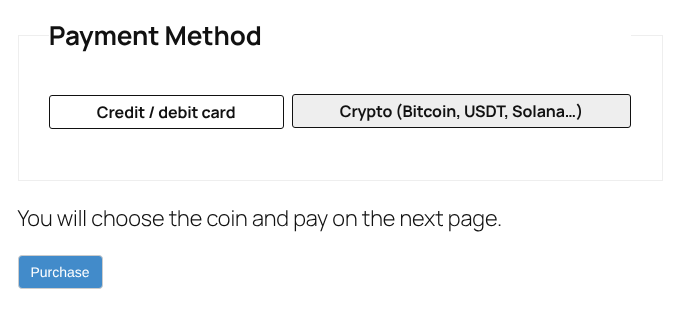
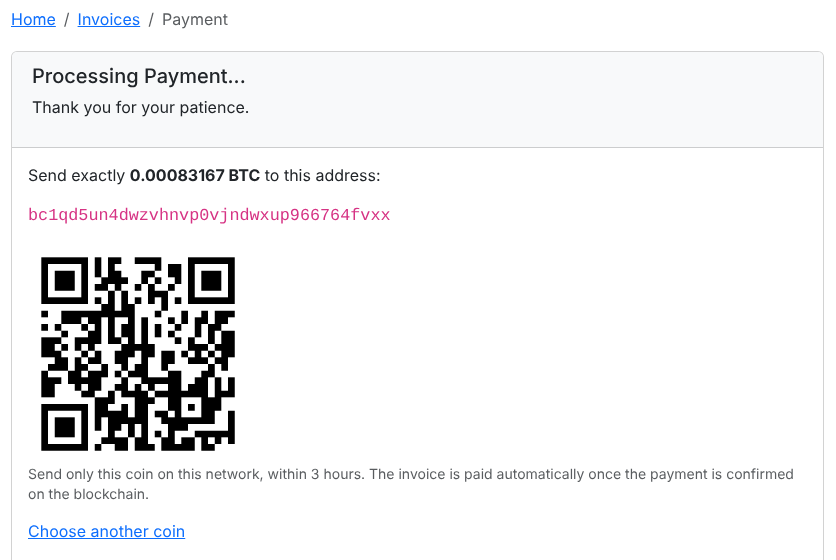
- When your customer place an order they will be shown the amount of crypto to send, a cryptocurrency receiving address to send to and a QR code for easy sending.
- A unique wallet address is assigned to each order for enhanced privacy and precise payment detection.
- Once the customer send the correct amount to the unique address our bot will notify your website about the payment marking order as paid.
- Received crypto are forwarded to your specified wallet instantly after confirming payment without any delays or holds.
Minimum Order Amount
💡Minimum order amount varies per blockchain network:
WooCommerce Installation Guide
📘 Read the full step-by-step WooCommerce crypto guide with screenshots
💡 Click the platform logo to get the plugin files
- Download the plugin (WooCommerce >> Plugins >> Add new)
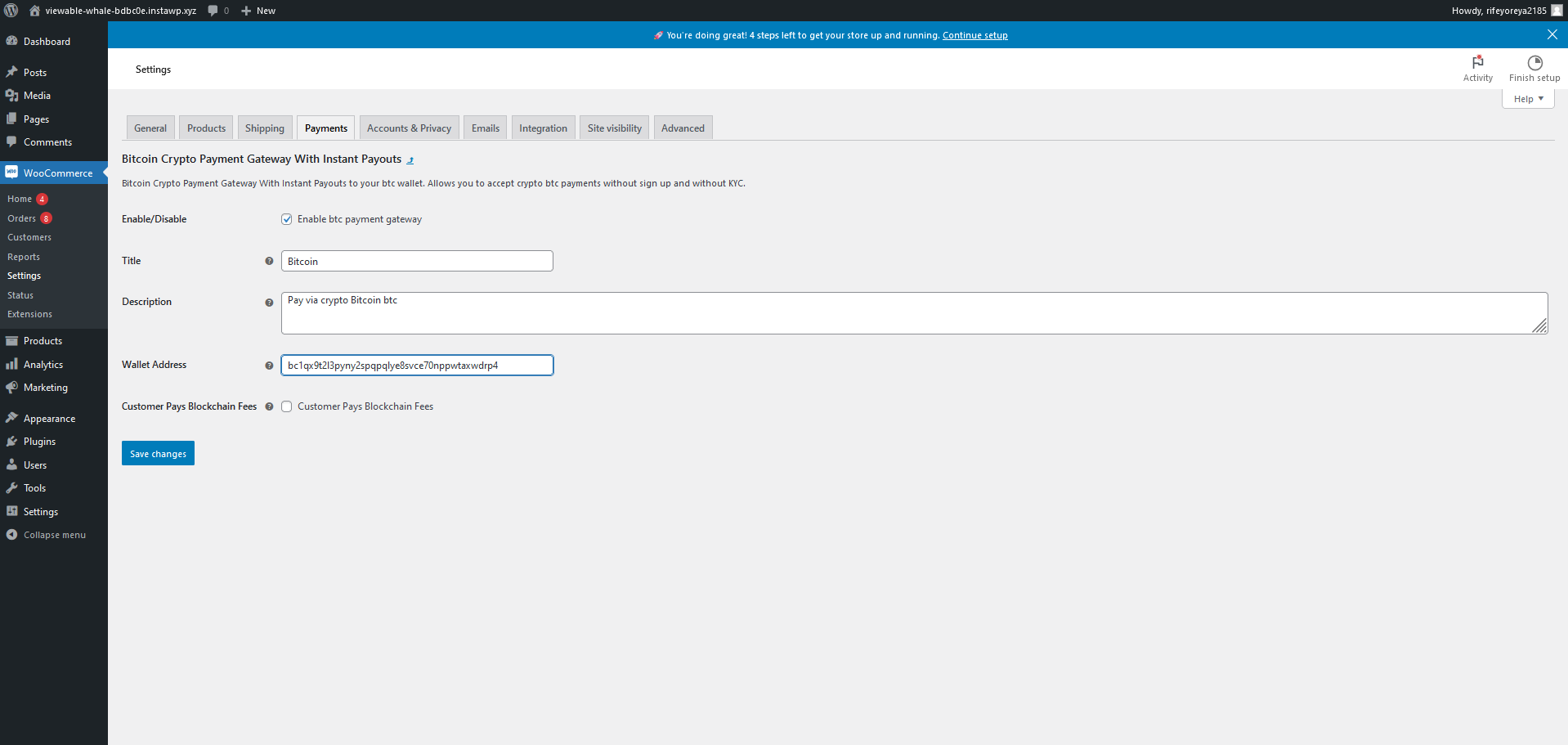
- Go to WooCommerce >> Settings >> Payments tab
- Activate the payment gateway provider and make sure you insert your valid wallet address to receive instant payouts.
- If you can't see the enabled payment gateway follow this guide to fix blocks.
- After following these steps customers will be able to use their crypto to pay for orders on your website.
- If you are having an issue with our plugin you can learn more about fixing common payment gateway issues.
Easy Digital Downloads Installation Guide
📘 Read the full step-by-step Easy Digital Downloads crypto guide with screenshots
💡 Click the platform logo to get the plugin files
Works with Easy Digital Downloads 3.7 or newer.
- Download the plugin
- From your WordPress admin menu Plugins >> Add New Plugin click Upload Plugin, upload the zip file as it is and activate the plugin.
- Go to Downloads >> Settings >> Payments and switch on PayGate.to Crypto Payments under Active Gateways.
- Open the PayGate.to Crypto tab, insert your valid wallet for each network you accept and click Save Changes.
- After following these steps customers will be able to buy your downloads using crypto.
- Full settings and transaction statuses are explained in the plugin guide. If you are having an issue with our payment gateway plugin you can contact support.
WHMCS Installation Guide
📘 Read the full step-by-step WHMCS crypto guide with screenshots
💡 Click the platform logo to get the plugin files
- Download the module
- Upload the files via FTP to the path /modules/gateways
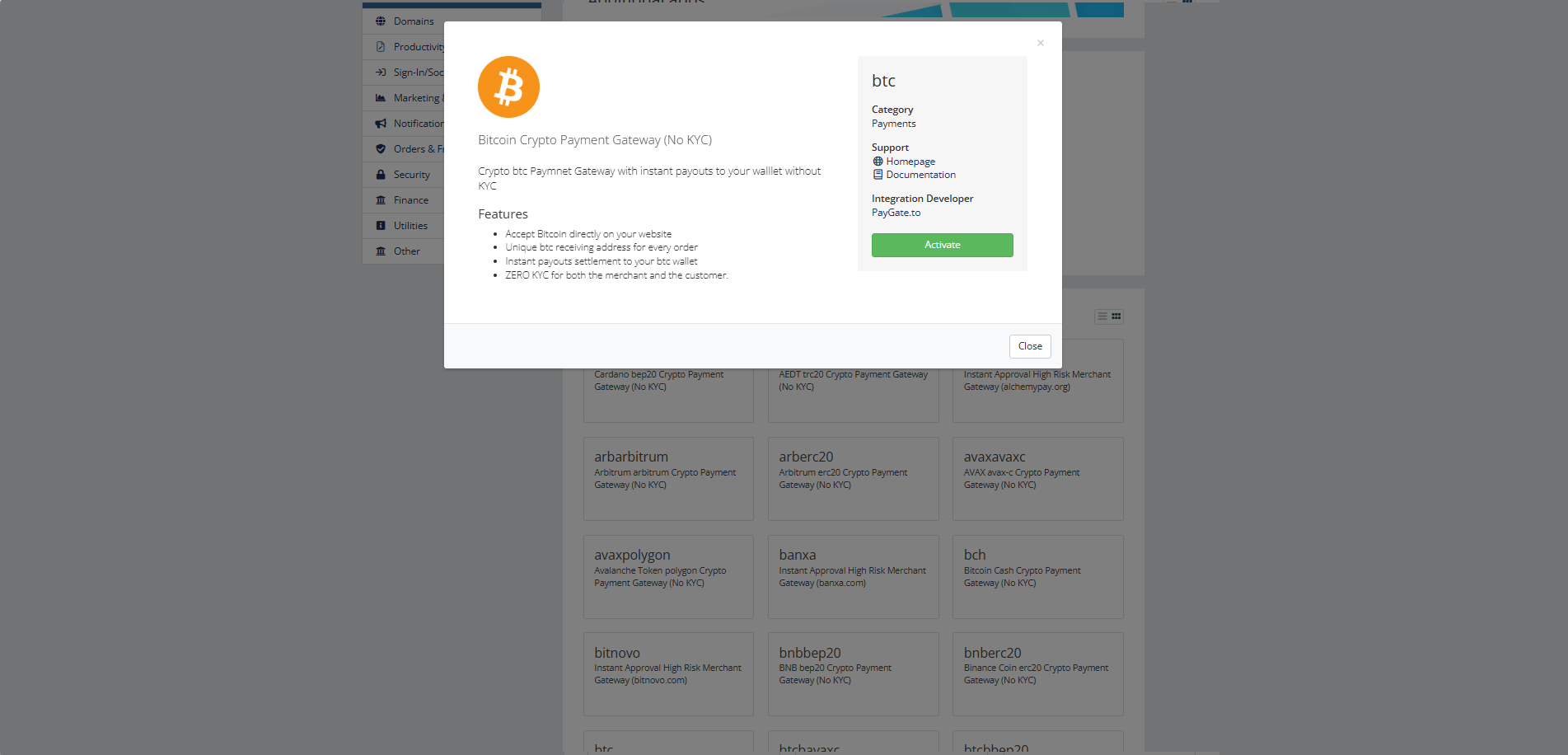
- Activate the payment gateway for the desired cryptocurrency or coun from the admin settings and make sure you insert your valid wallet to receive instant payouts.
- After following these steps customers will be able to to pay invoices on your website using crypto.
- If you are having an issue with our payment gateway module you can learn more about fixing common WHMCS payment gateway issues.
FOSSBilling Installation Guide
📘 Read the full step-by-step FOSSBilling crypto guide with screenshots
💡 Click the platform logo to get the module files
Works with FOSSBilling 0.7.2 or newer.
- Download the module
- Upload the PayGateCrypto folder via FTP to the path /library/Payment/Adapter
- From your FOSSBilling admin menu System >> Payment gateways click New payment gateway and install PayGateCrypto.
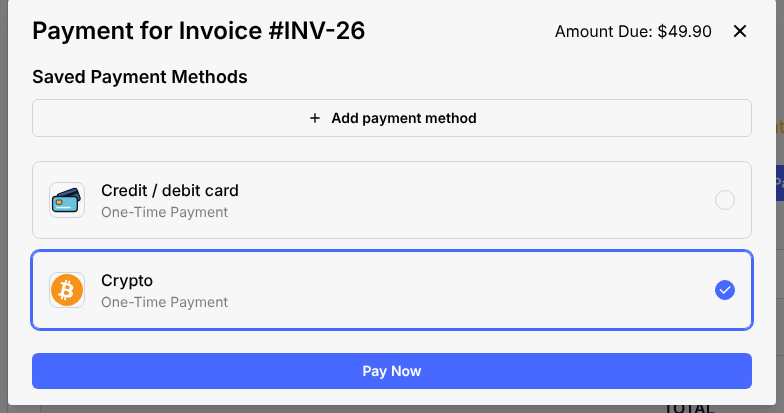
- Choose the hosted multi-coin page or the address and QR code on your invoice page, insert your valid wallet for each network you accept, switch on Enabled and Allow One Time Payments, then click Update Gateway.
- After following these steps clients will be able to pay invoices on your website using crypto.
- Full settings and transaction statuses are explained in the module guide. If you are having an issue with our payment gateway module you can contact support.
Paymenter Installation Guide
📘 Read the full step-by-step Paymenter crypto guide with screenshots
💡 Click the platform logo to get the extension files
Works with Paymenter 1.4 or newer.
- Download the extension
- From your Paymenter admin menu Extensions >> Available Extensions open Ready to Install / Upload, click Upload Extension and upload the zip file as it is.
- Go to Gateways, click New gateway and choose PayGateCrypto as the Gateway.
- Set the name your clients see, insert your valid wallet for each network you accept, then click Create.
- After following these steps clients will be able to pay invoices on your website using crypto.
- Full settings and transaction statuses are explained in the extension guide. If you are having an issue with our payment gateway extension you can contact support.
OpenCart Installation Guide
📘 Read the full step-by-step OpenCart crypto guide with screenshots
💡 Click the platform logo to get the extension files
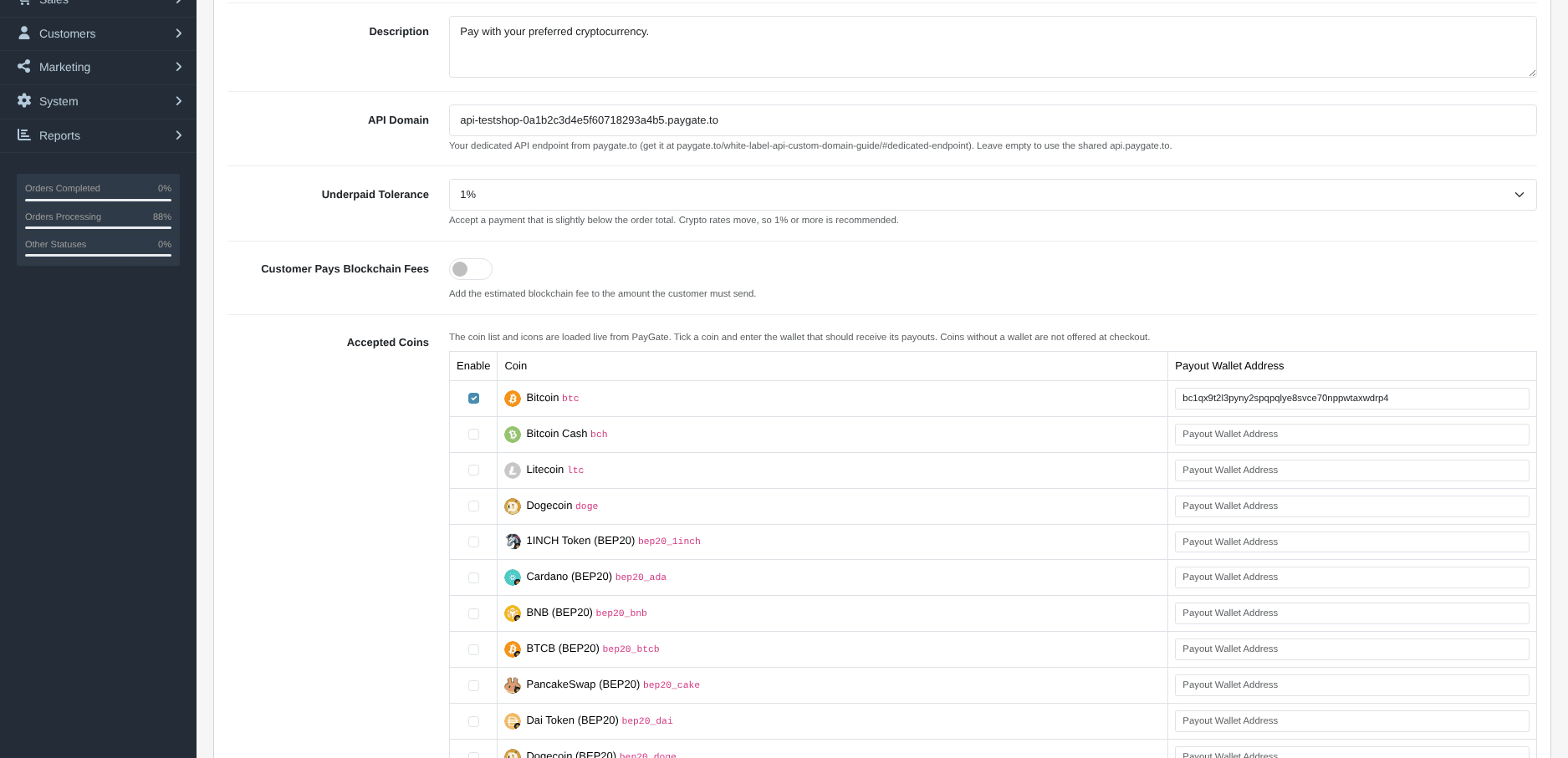
- Download the extension (OpenCart 4.0.2 and newer)
- From your OpenCart admin menu Extensions >> Installer, upload the extension file then make sure it is fully installed on your system.
- Go to Extensions >> Extensions and choose Payments from the drop-down. Install PayGate.to Crypto (Individual Coins) for the QR code on your own store and/or PayGate.to Crypto (Multicoin) for the hosted multi-coin checkout page.
- Click the pencil edit button, tick the coins you want to accept and make sure you insert your valid wallet address for each coin to receive instant payouts, then enable the payment method.
- After following these steps customers will be able to use their crypto to pay for orders on your website.
- If you are having an issue with our payment gateway extension you can contact support.
PrestaShop Installation Guide
📘 Read the full step-by-step PrestaShop crypto guide with screenshots
💡 Click the platform logo to get the module files
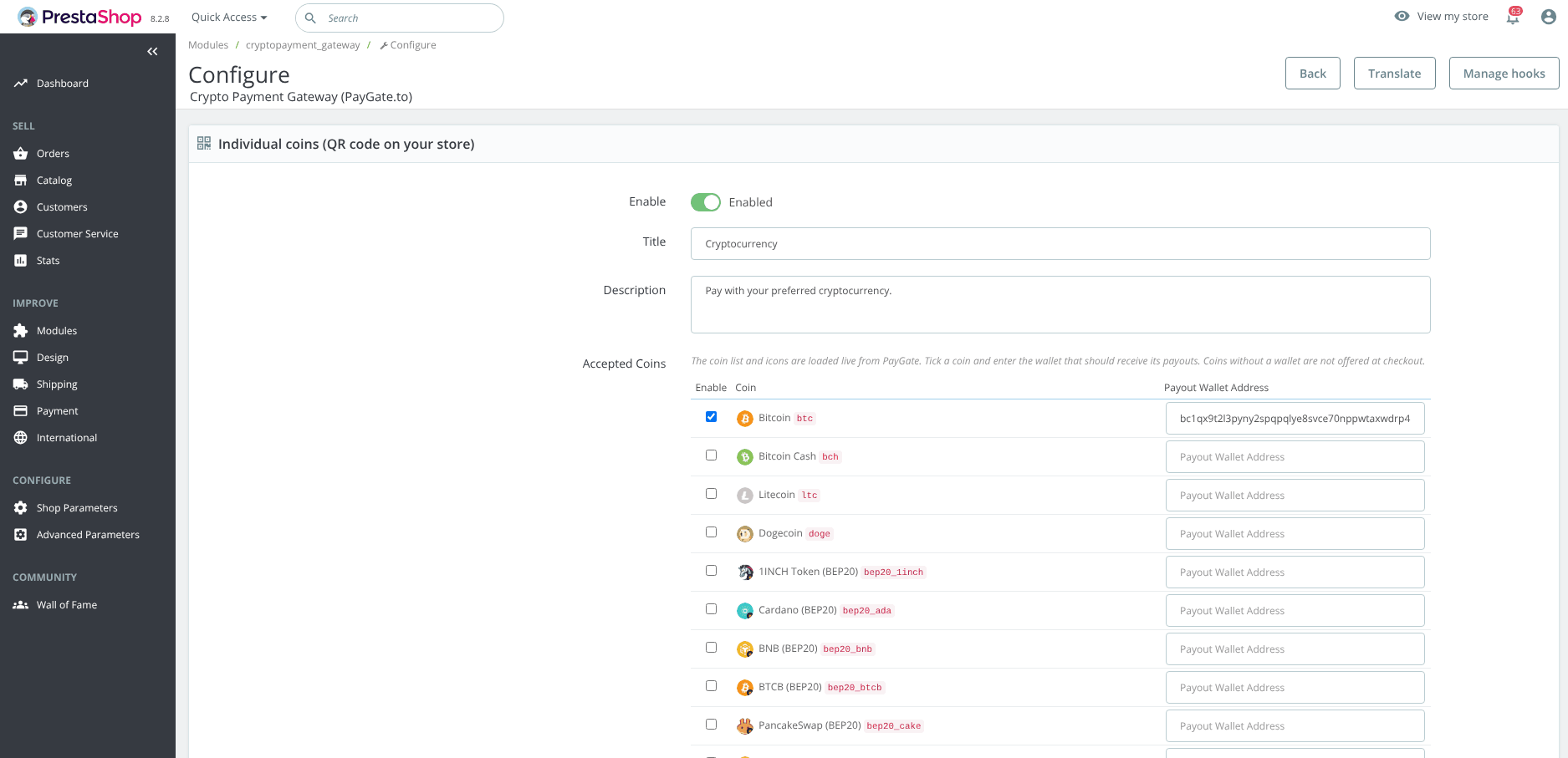
- Download the module (PrestaShop 1.7.7 and newer)
- From your PrestaShop admin upload and install the module zip file through the admin menu Modules >> Module Manager >> Upload a module.
- Click Configure, tick the coins you want to accept and make sure you insert your valid wallet address for each coin to receive instant payouts. For the hosted multi-coin checkout page fill in the Multicoin wallets.
- After following these steps customers will be able to use their crypto to pay for orders on your website.
- If you are having an issue with our payment gateway module you can contact support.
Magento Installation Guide
📘 Read the full step-by-step Magento crypto guide with screenshots
💡 Click the platform logo to get the module files
Works with Magento 2.4.4 or newer (Magento Open Source, Adobe Commerce and Mage-OS).
- From your Magento root folder install the module with Composer:
composer config repositories.paygate-crypto vcs https://github.com/paygate-to/Magento-Crypto-Payment-Gatewaythencomposer require paygate/module-crypto-payment:dev-main - Or download the module and upload its files via FTP to the path /app/code/PayGate/CryptoPayment
- Run
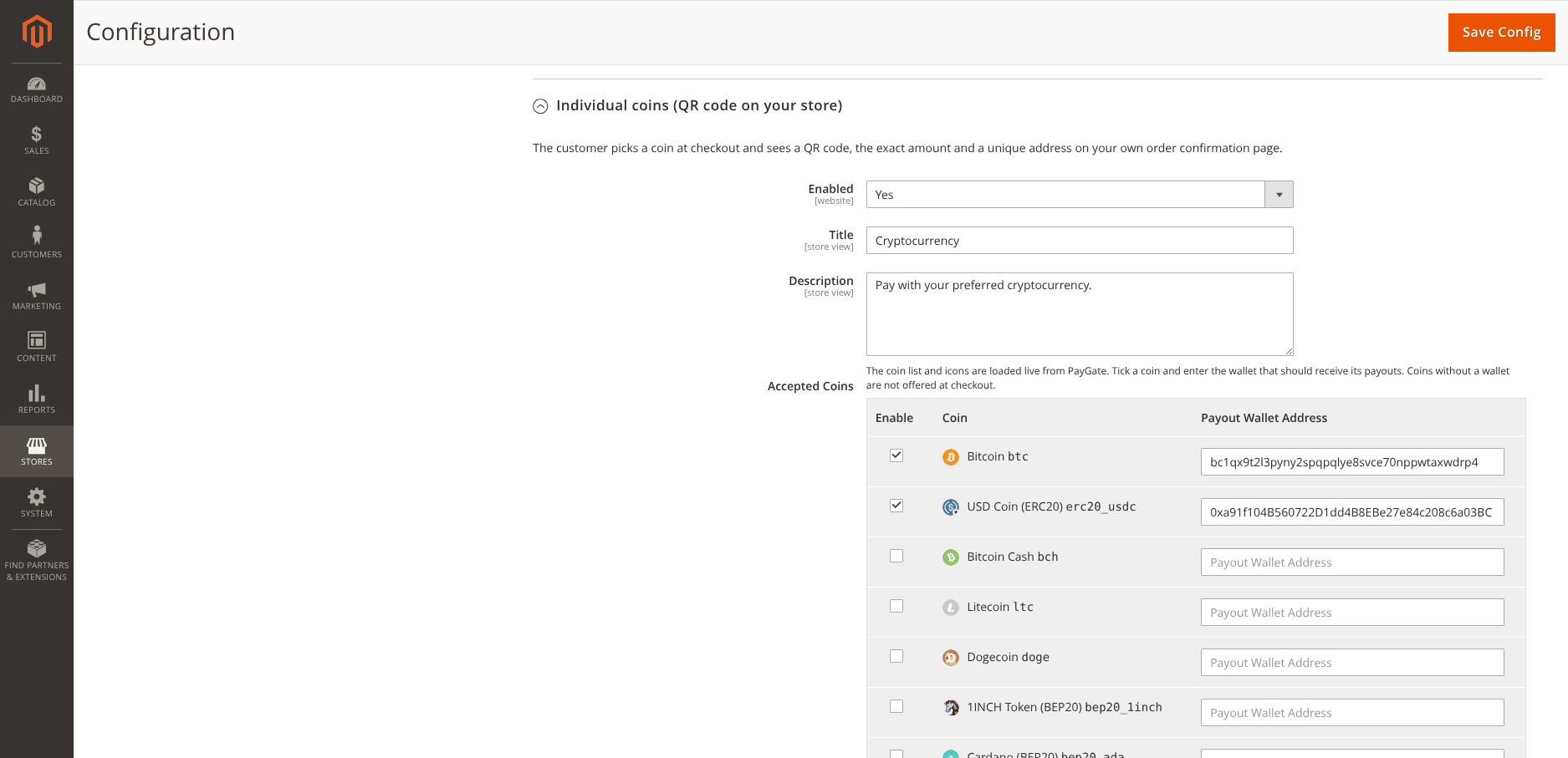
bin/magento module:enable PayGate_CryptoPayment,bin/magento setup:upgradeandbin/magento cache:flush. In production mode also runbin/magento setup:di:compileandbin/magento setup:static-content:deploybefore flushing the cache. - From your Magento admin menu Stores >> Configuration >> Sales >> Payment Methods open PayGate.to Crypto Payments.
- Under Individual coins set Enabled to Yes, tick the coins you want to accept and make sure you insert your valid wallet address for each coin to receive instant payouts. For the hosted multi-coin checkout page enable Multicoin and fill in its wallets. Then click Save Config.
- After following these steps customers will be able to use their crypto to pay for orders on your website. The QR code and payment status are shown on your own order confirmation page and unpaid orders are cancelled automatically when Magento cron is running.
- Full settings and order statuses are explained in the module guide. If you are having an issue with our payment gateway module you can contact support.
Freelancers
Freelancers and merchants who would like to sell individually without a website can also use our crypto payment system through the 💳 Crypto Receiving Address generator.
White-label Affiliate
Earn your own custom set percentage commission on every transaction with our white-label instantly ready crypto payment gateway. You can join our open affiliate program without providing any information (ZERO KYC).